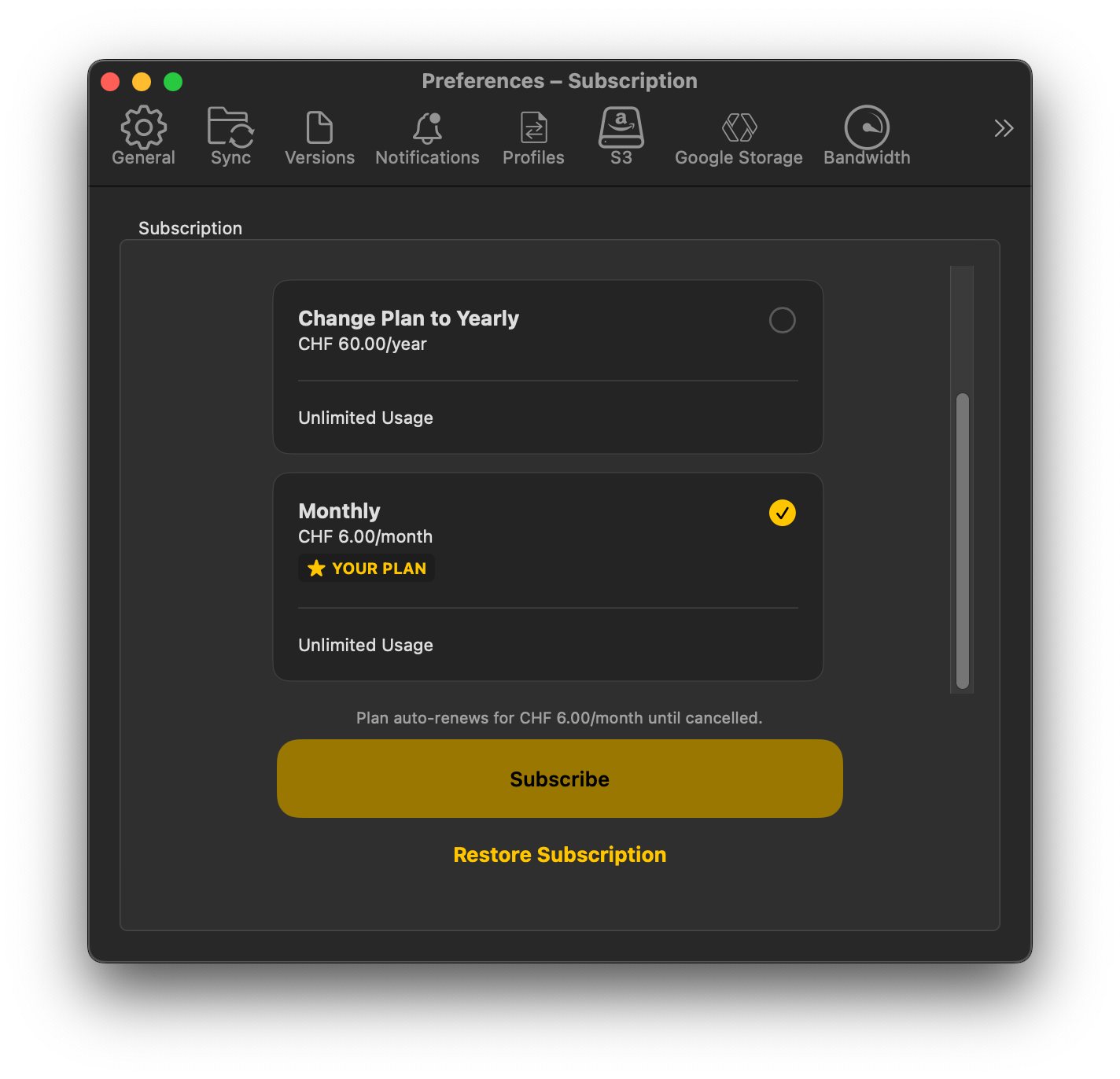
Version 5 is now available in the Mac App Store as a subscription instead of a perpetual license. If you previously purchased Mountain Duck in the Mac App Store, you are eligible to run version 5 with no limitations for up to one year after your purchase date before you are required to purchase a monthly or yearly subscription.
Unfortunately we cannot distribute version 4 any longer in the Mac App Store and it is not possible to support subscriptions through the Volume Purchase Program (VPP) in the Apple Business Manager or Apple School Manager. We advise to use a different solution to distribute software for users and switch to perpetual licensing we offer for Mountain Duck outside the Mac App Store.
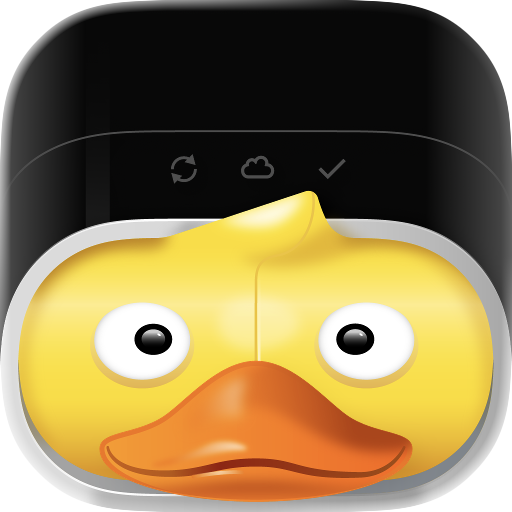
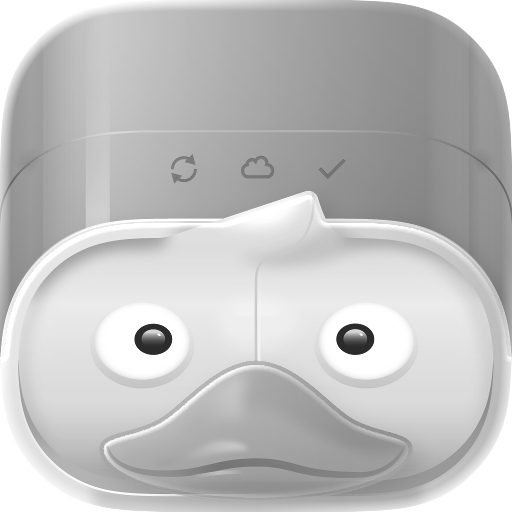
The new application icon designed by Katharina Hagemann now comes in three variants for macOS 26 Tahoe including Dark and Mono variants. We have decided to make it squircled to fit into the new icon paradigma. The changes will be available in version 5.1.
New Status Bar Icons
Also the status bar icon in the status bar on macOS and the system tray on Windows as the main user interface to configure Mountain Duck has been revamped to visually fit better and show sync progress with rotating arrows.
We are thrilled to announce Mountain Duck 5, the premier choice to mount server and cloud storage as a disk in Finder on macOS and the File Explorer on Windows. Version 5 is a solid major upgrade in development for several years with many new features and refinements, including a new Integrated Connect Mode, storage-independent file versioning support, and SMB connections.
New Features
Integrated Connect Mode
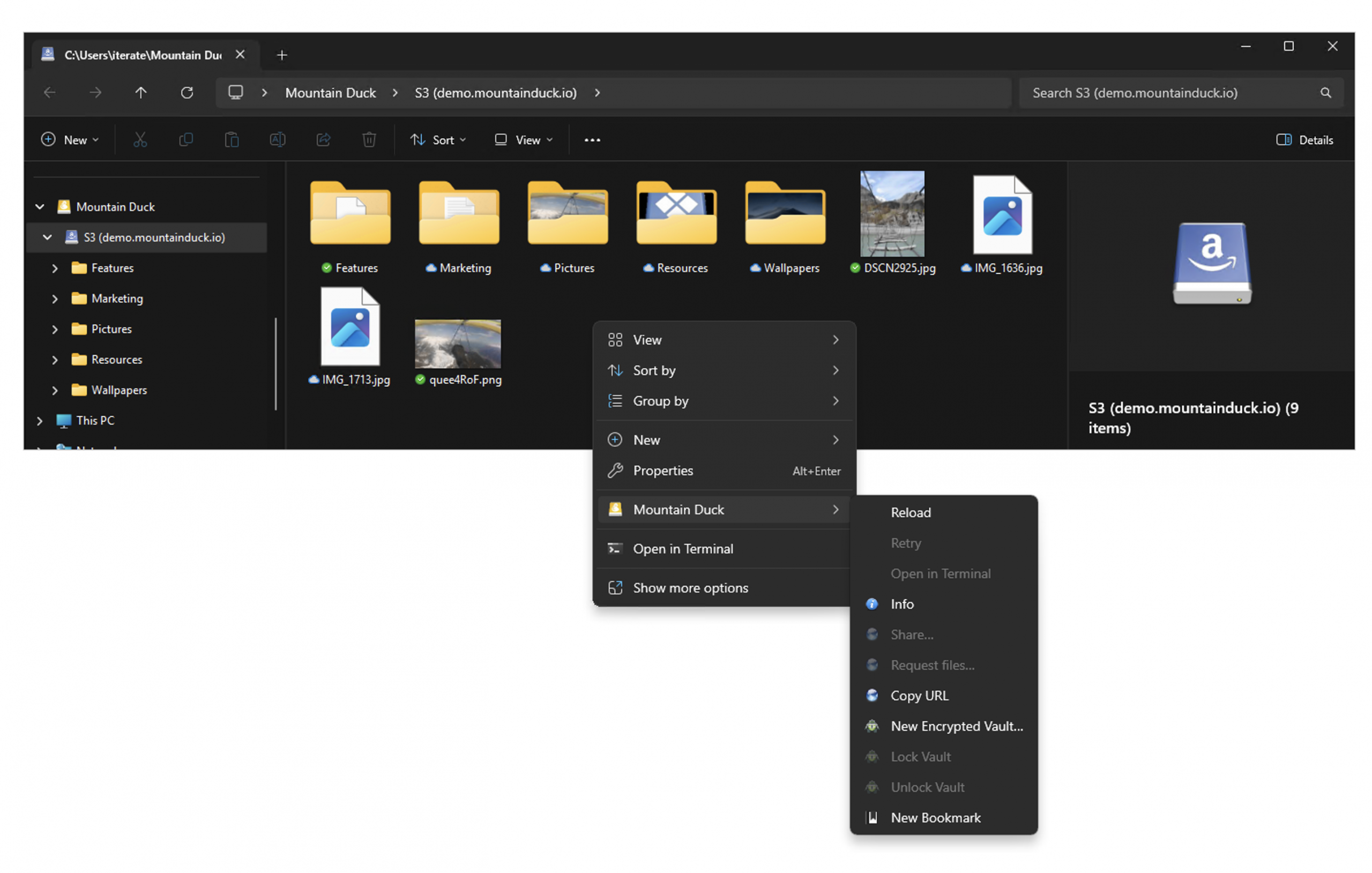
Mountain Duck 5 features a new Integrated connect mode using native APIs on Windows & macOS to integrate in the file explorer. No device driver installation or network mount required. The connect mode delivers significantly faster file write performance and file operations that match the speed of local disk operations, and a user experience similar to OneDrive on Windows or iCloud Drive on macOS but with any cloud storage provider of your choice.
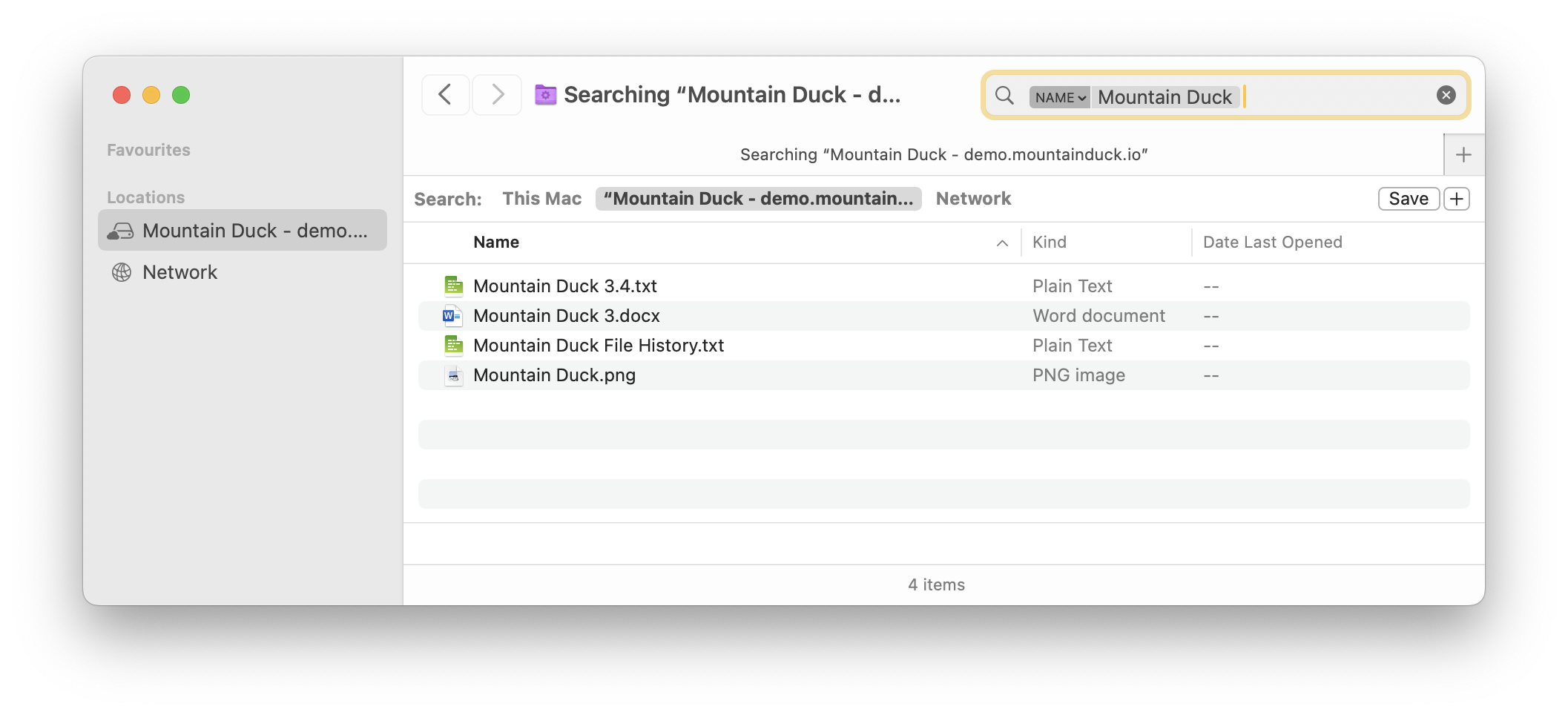
Windows Search and Spotlight on macOS can be used to search for files on remote storage in Integrated connect mode.
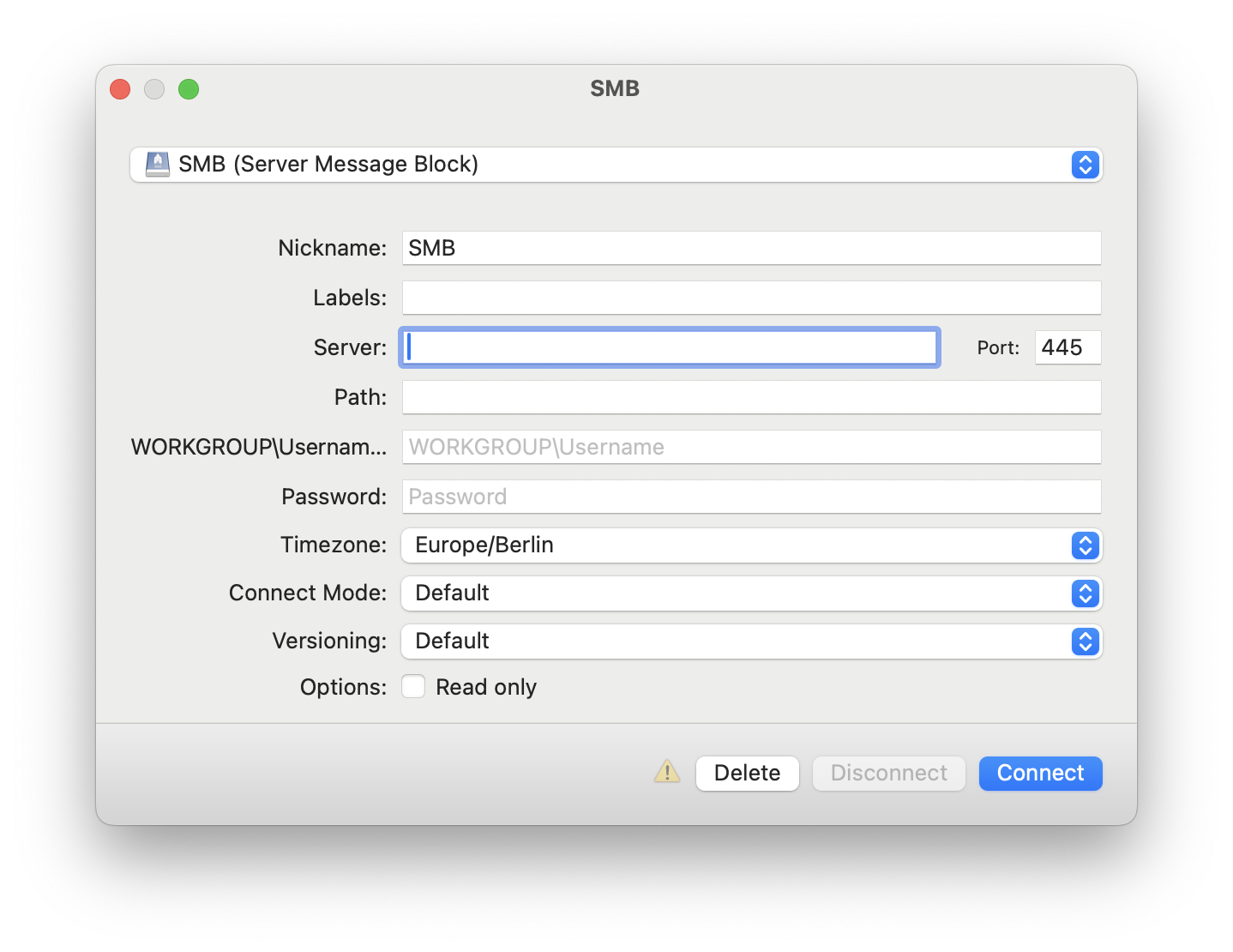
As already available in Cyberduck, Mountain Duck 5 expands its protocol support with the addition of SMB (Server Message Block), enabling seamless connectivity to Windows file shares, Linux Samba, macOS File Sharing & Azure File Shares.
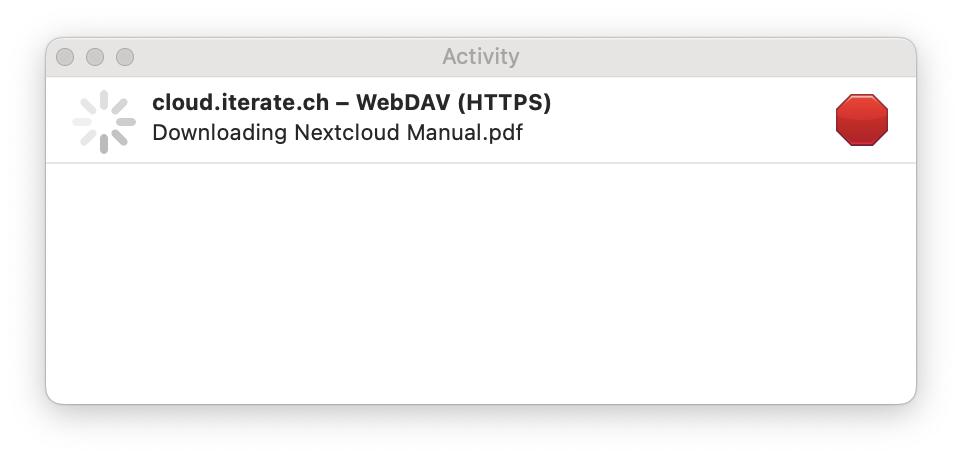
Track and cancel currently running sync operations in the new Activity panel available from the status bar (macOS) or tray (Windows) menu. It shows all running operations on files, pending sync tasks as well as any pending mount process.
Custom Versioning
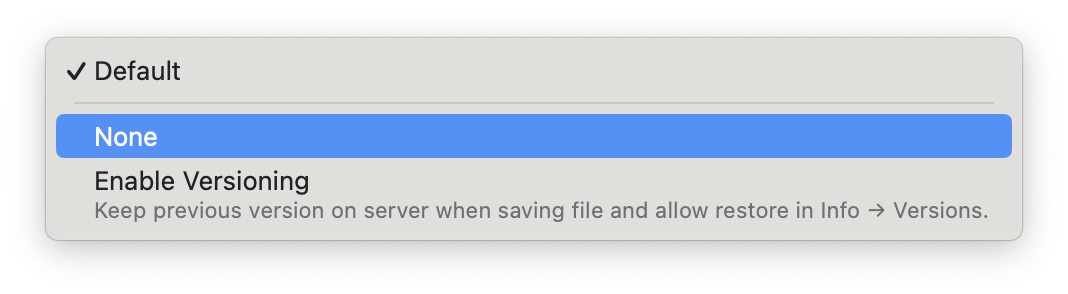
The new Custom Versioning feature allows to safeguard and restore previous file versions. The previous version is stashed away before overwriting a file.
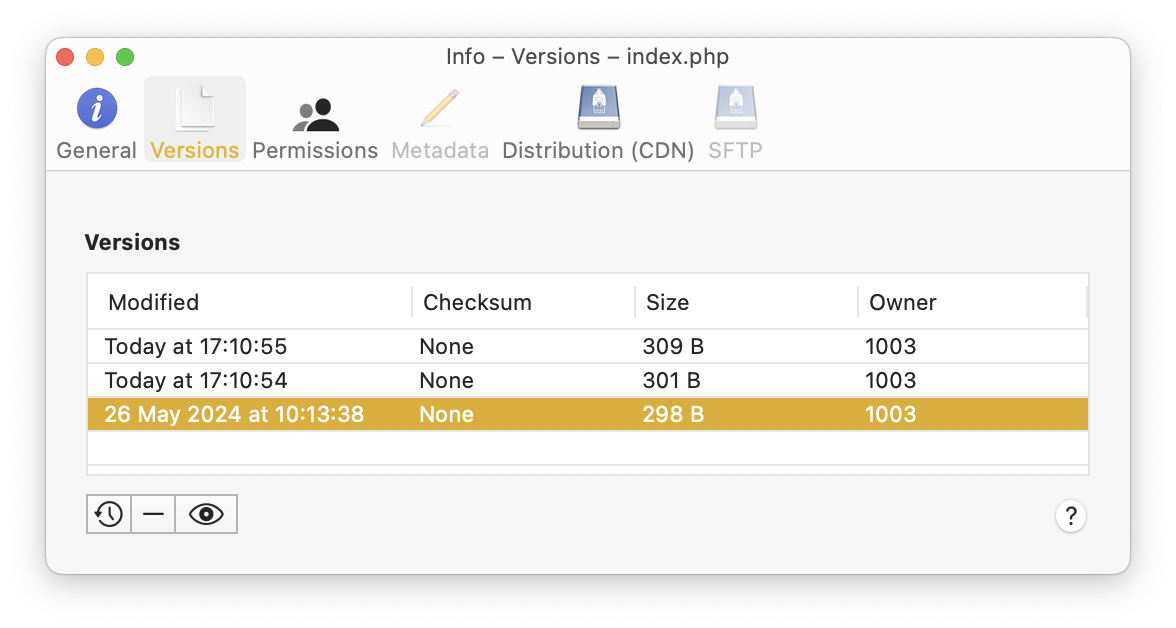
The option is available for all protocols with no support of file versioning such as FTP, SFTP or WebDAV ensuring your files are protected with version history regardless of the underlying storage protocol. File versions can be view and restored in the Info window.
Version 5 is the first paid upgrade after version 4 debuted in June 2020 with 17 free minor updates released since. Users with a license for version 4 receive an upgrade discount between 20% to 100%.
The new Integrated connect mode in Mountain Duck 5 synchronizes files and folders from a directory on the local disk with support from macOS and Windows.
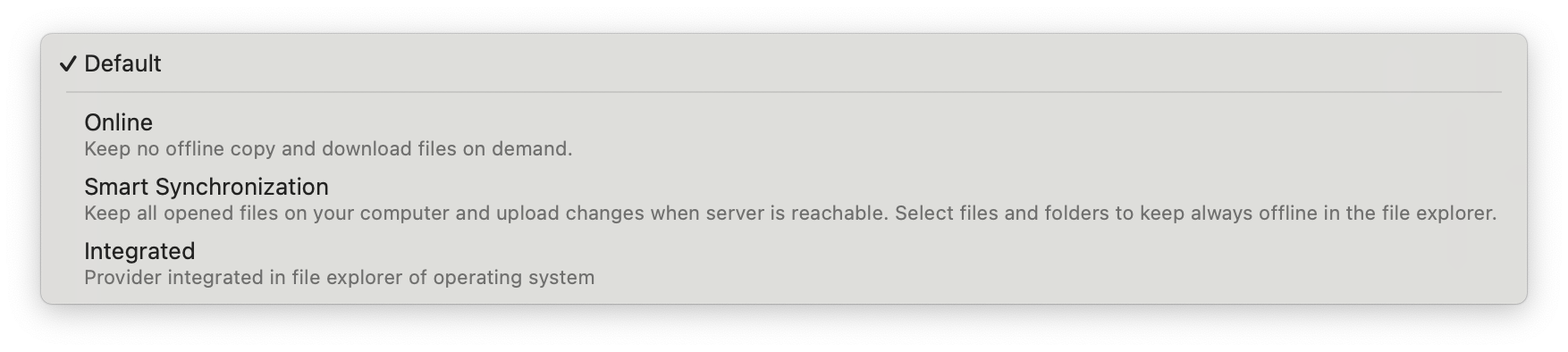
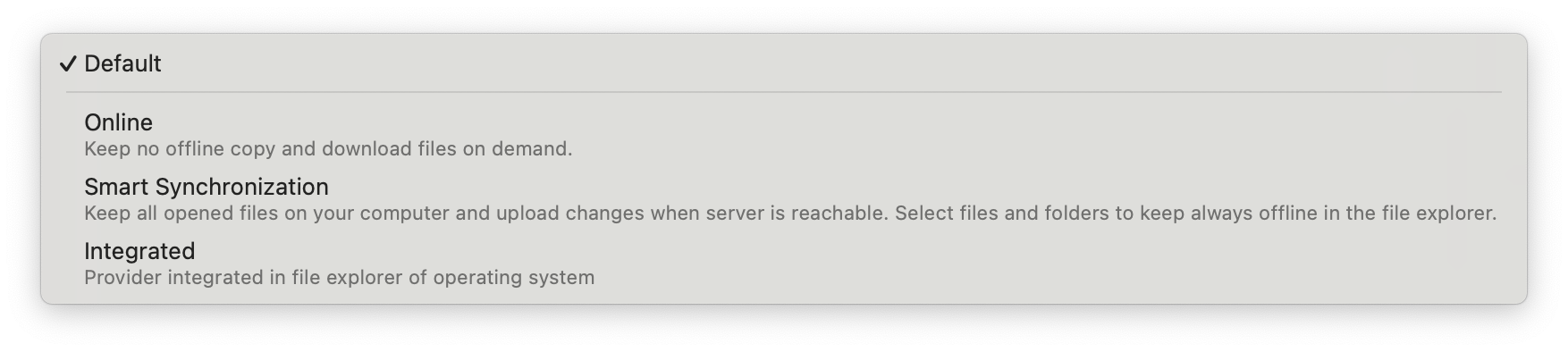
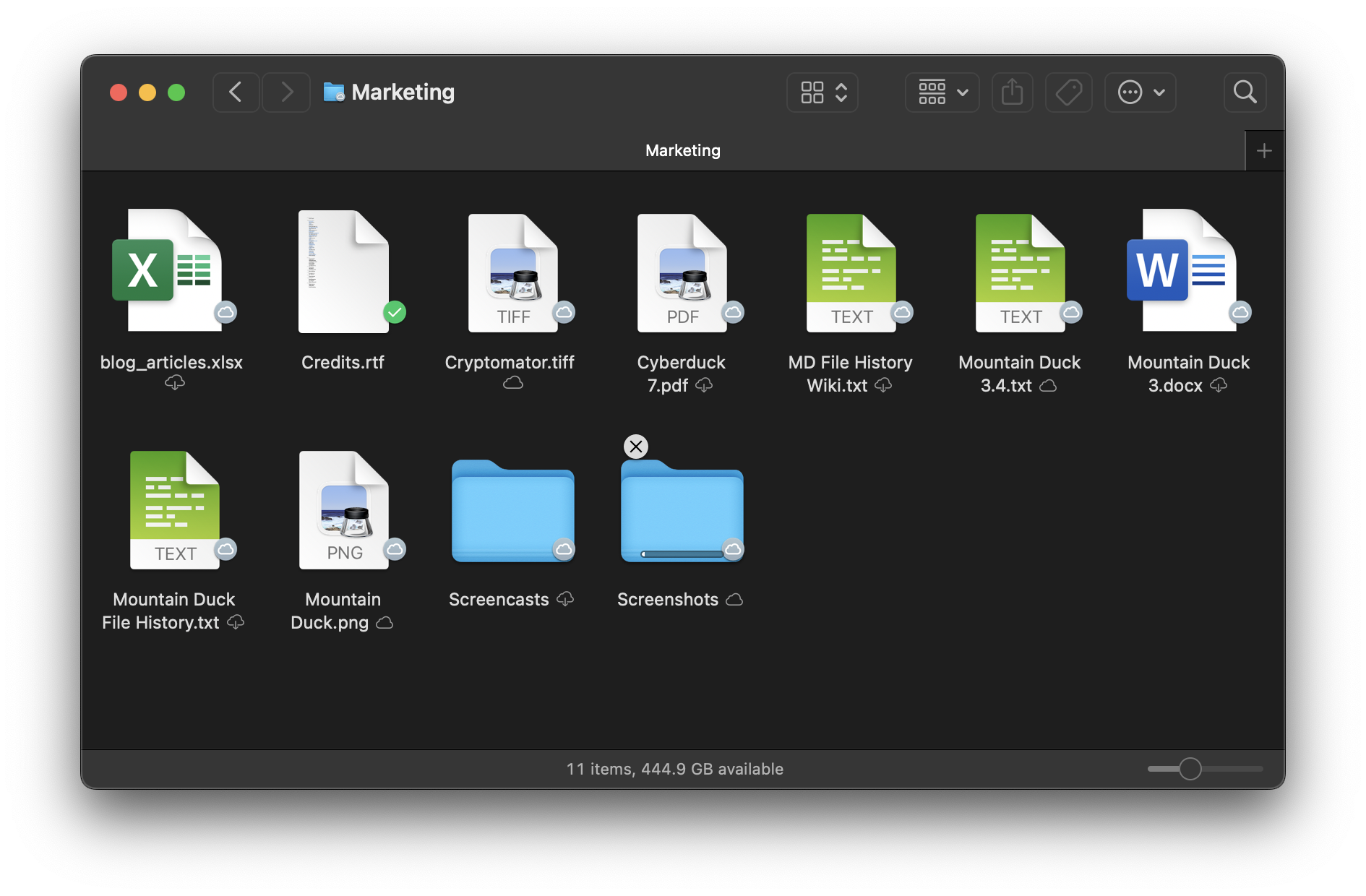
While the Onlineand Smart Synchronizationmodes use device driver on Windows and NFS on macOS respectively to mount connections, the Integrated mode uses the tightly integrated File Provider (macOS) and Cloud Files (Windows) APIs to sync files from regular folder on the local disk like iCloud or OneDrive does. It allows faster writing and copy processes and access to cached content when offline.
Synchronization
The usage of dedicated operating system features for syncing make Mountain Duck 5 future proof. Like in Smart Synchronization connect mode, files are displayed as placeholders, cached on local disk and optionally selected to always keep offline.
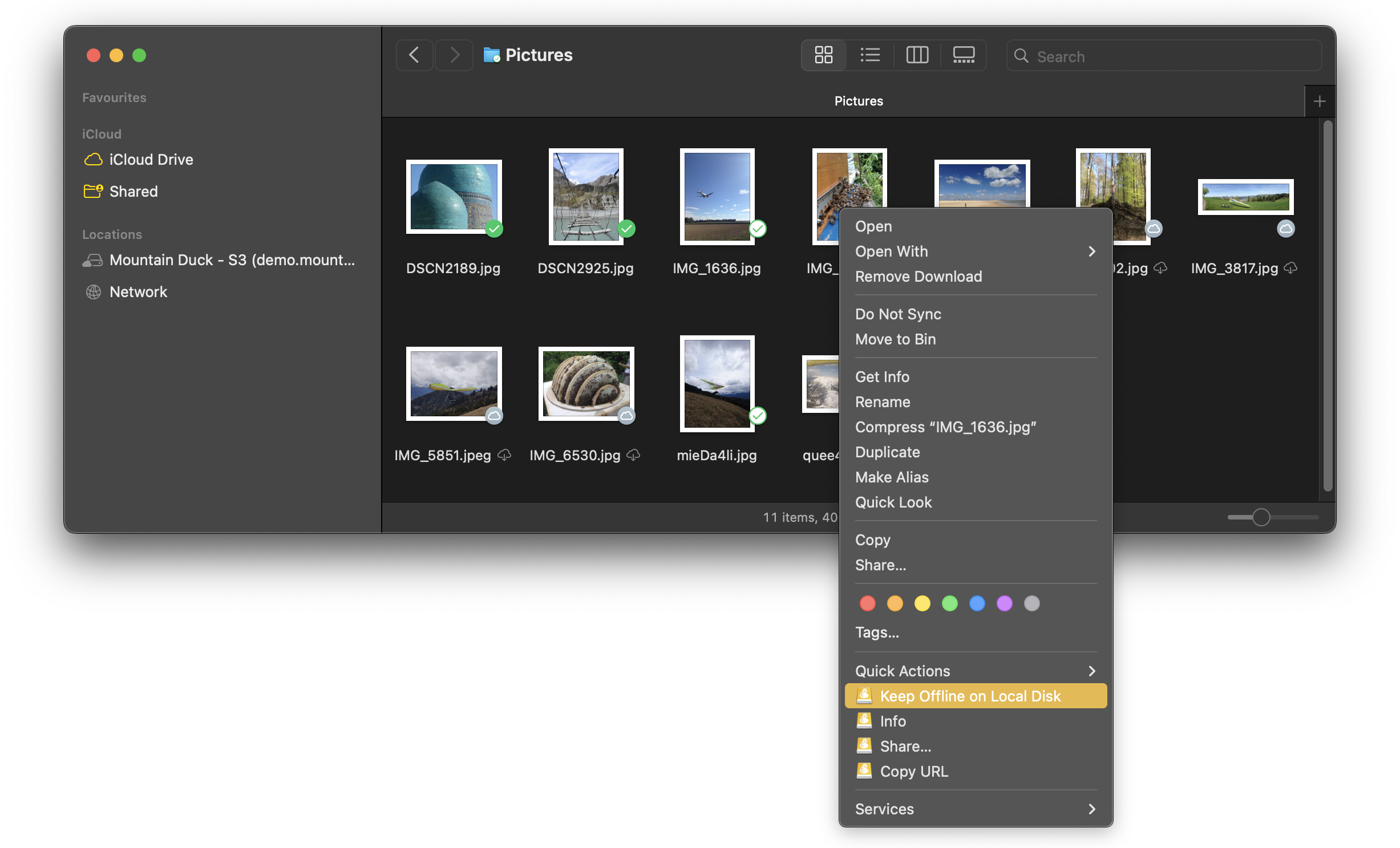
The improved user experience includes familiar file management controls directly within Finder and Windows Explorer, allowing users to easily select files to keep offline, remove cached data, or exclude items from synchronization. Visual indicators provide instant feedback on synchronization status through additional icons displayed next to filenames. Real-time progress is shown during file transfers with progress bars over file icons and circular progress indicators, giving users complete visibility into upload and download operations.
Additional Context Menu Items
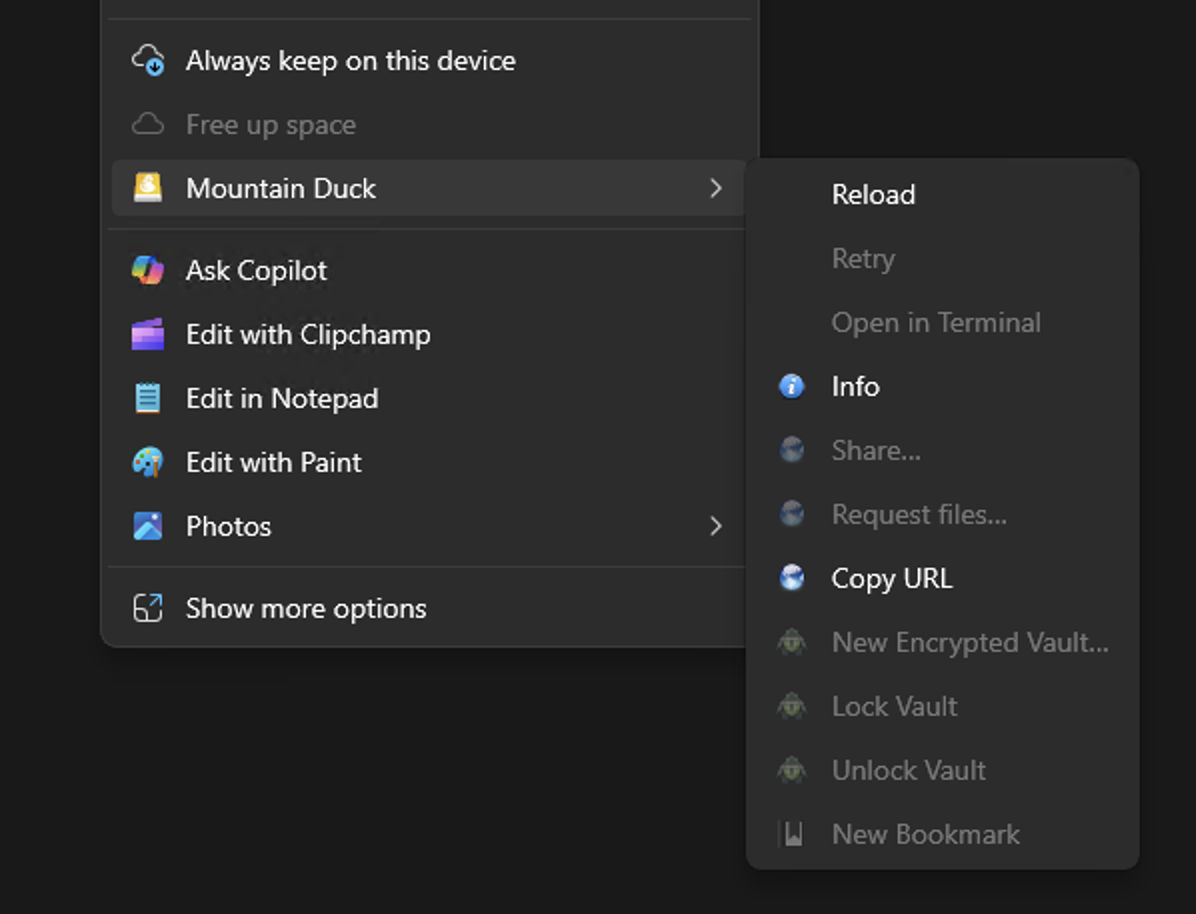
Additional context menu items in Windows Explorer and Finder.app on macOS provided by the system allow to download files or free up space for files already cached.
Spotlight
Windows Search and Spotlight on macOS can be used to search for files on remote storage in Integrated connect mode.
New Default
The Integrated connect mode is the default for new connections configured. Existing bookmarks retain the connect mode when an existing cache location is found.
With Mountain Duck 5, a new storage-independent versioning option is introduced for protocols with no support for file versioning such as FTP/SFTP, WebDAV, and OpenStack Swift. Safeguard against potential file loss with custom versioning. Stash changes to a file in a versioned folder on the server.
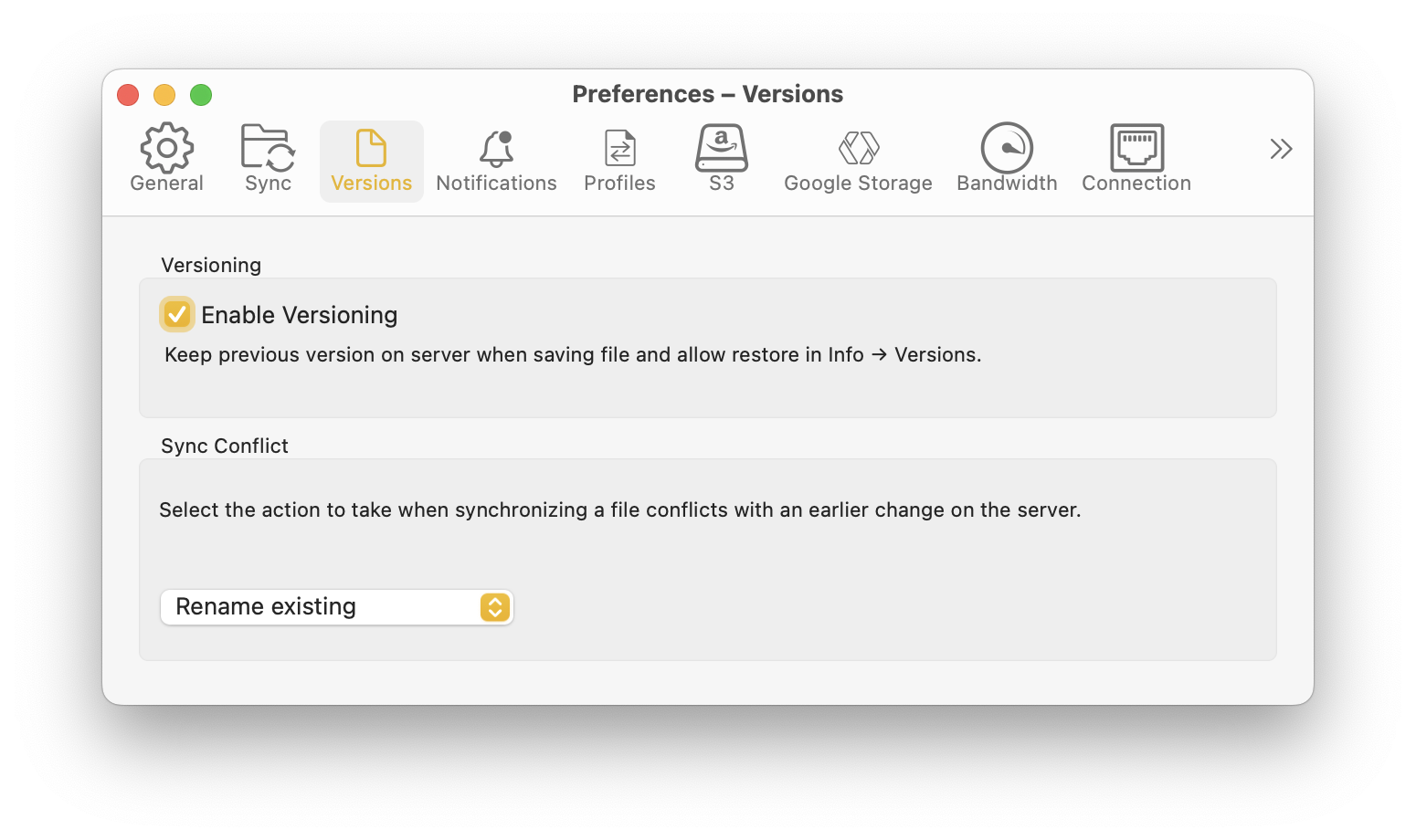
The custom versioning option can be enabled in the bookmark configuration or by default in Preferences → Versions tab.
Use the context menu Info → Versions to retrieve the file history where previous versions can be previewed, deleted or restored. Alternatively manage previous versions stored in the folder named .duckversions adjacent to the file.
More information on the settings can be found in the documentation.
Get a sneak peek at upcoming Mountain Duck 5. Features new Integrated connect mode using native APIs on Windows & macOS to integrate in the file explorer. No device driver installation or network mount required. The connect mode allows to sync files like OneDrive on Windows or iCloud Drive on macOS using the cloud storage provider of your choice. All major protocols are supported to connect to just about any server you want with SMB added as an additional option in version 5.
The new connect mode benefits from faster file write performance and file operations in general on par with operations on local disk. Local storage is managed by the operating system. The mount is not seen as a remote volume by applications but as a regular folder on disk and can be accessed when offline. You will find familiar user interface in Finder and Windows Explorer to select files to keep offline, remove cached data on disk or exclude from sync. An additional icon provided next to the filename is displayed indicating the synchronization status. Additionally, progress is shown when downloading or uploading a file with a progress bar over the file icon or circular progress indicator adjacent the filename. Windows Search and Spotlight on macOS can be used to search for files.
Choose Preferences → Update → Beta → Check for Update… in the Mountain Duck status bar menu to update. The build can be used with a validation registration key for version 4 while in beta.
 Cyberduck
 Mountain Duck
 CLI
CLI