· David Kocher · Posted in Cyberduck, Mountain Duck
Dropbox recently adopted the File Provider API available on macOS to be used as the exclusive way to synchronize files with their own app. The most prominent change from a user perspective is the limitation to store all synchronized files in ~/Library/CloudStorage as required by the File Provider API. Many users with large data sets preferred to set a custom location on an external disk previously which is no longer an option.
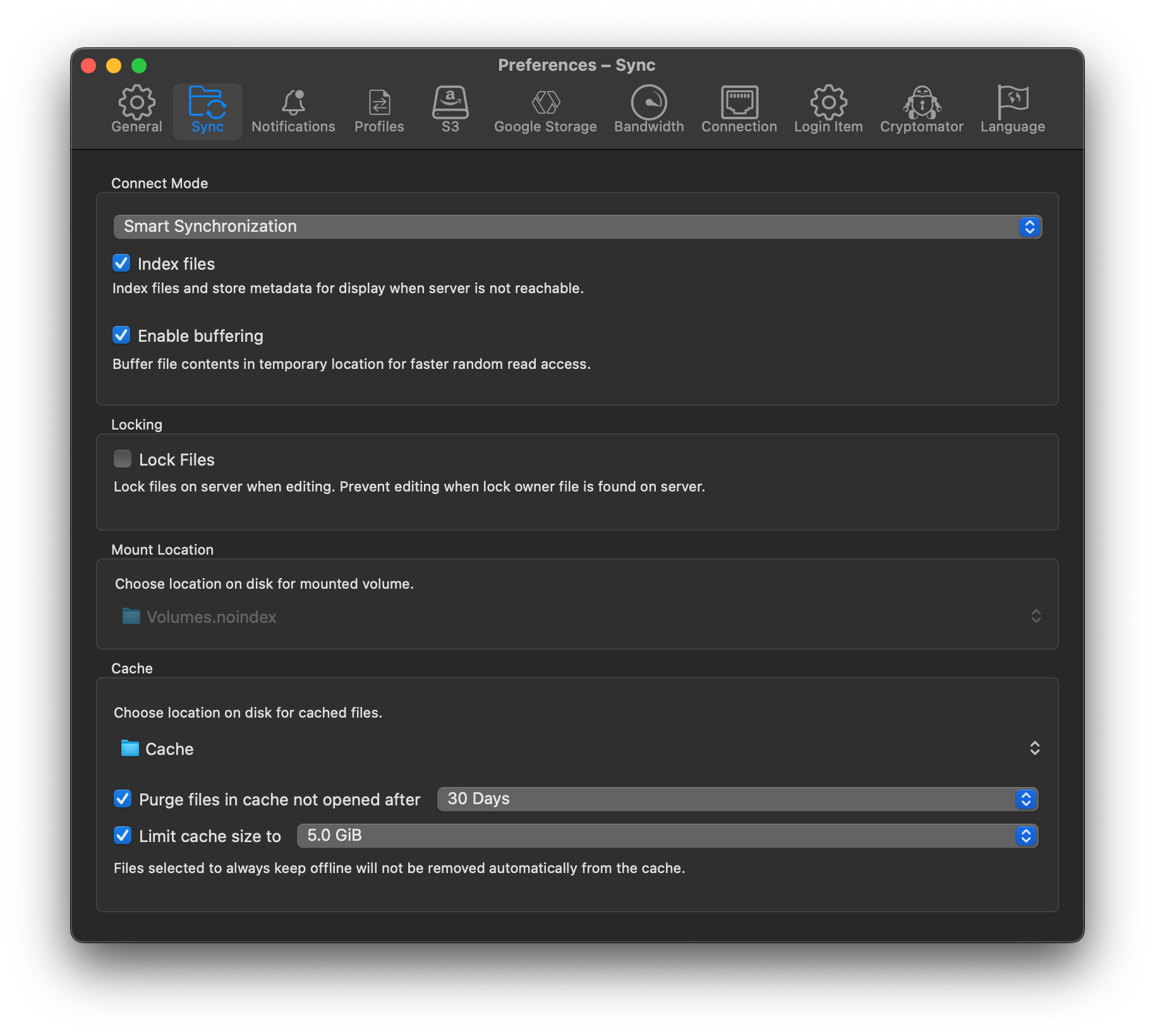
Mountain Duck is a viable alternative to the official Dropbox client. It allows to connect to and synchronize your files in Dropbox without any additional bloat. In Mountain Duck Preferences, you can change your cache location to a different folder or even to an external drive.
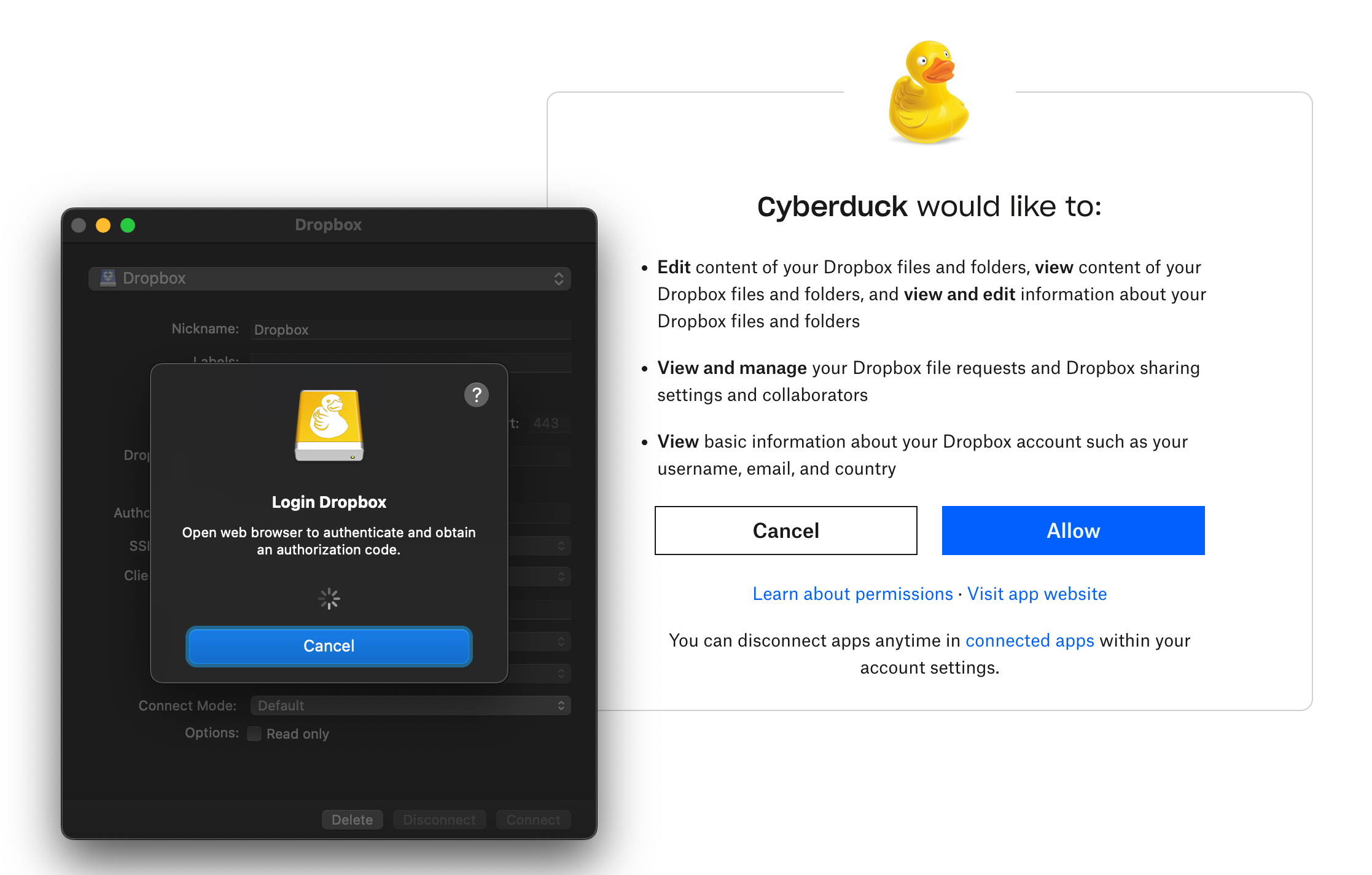
Mounting your Dropbox in Finder is straight forward using Mountain Duck:
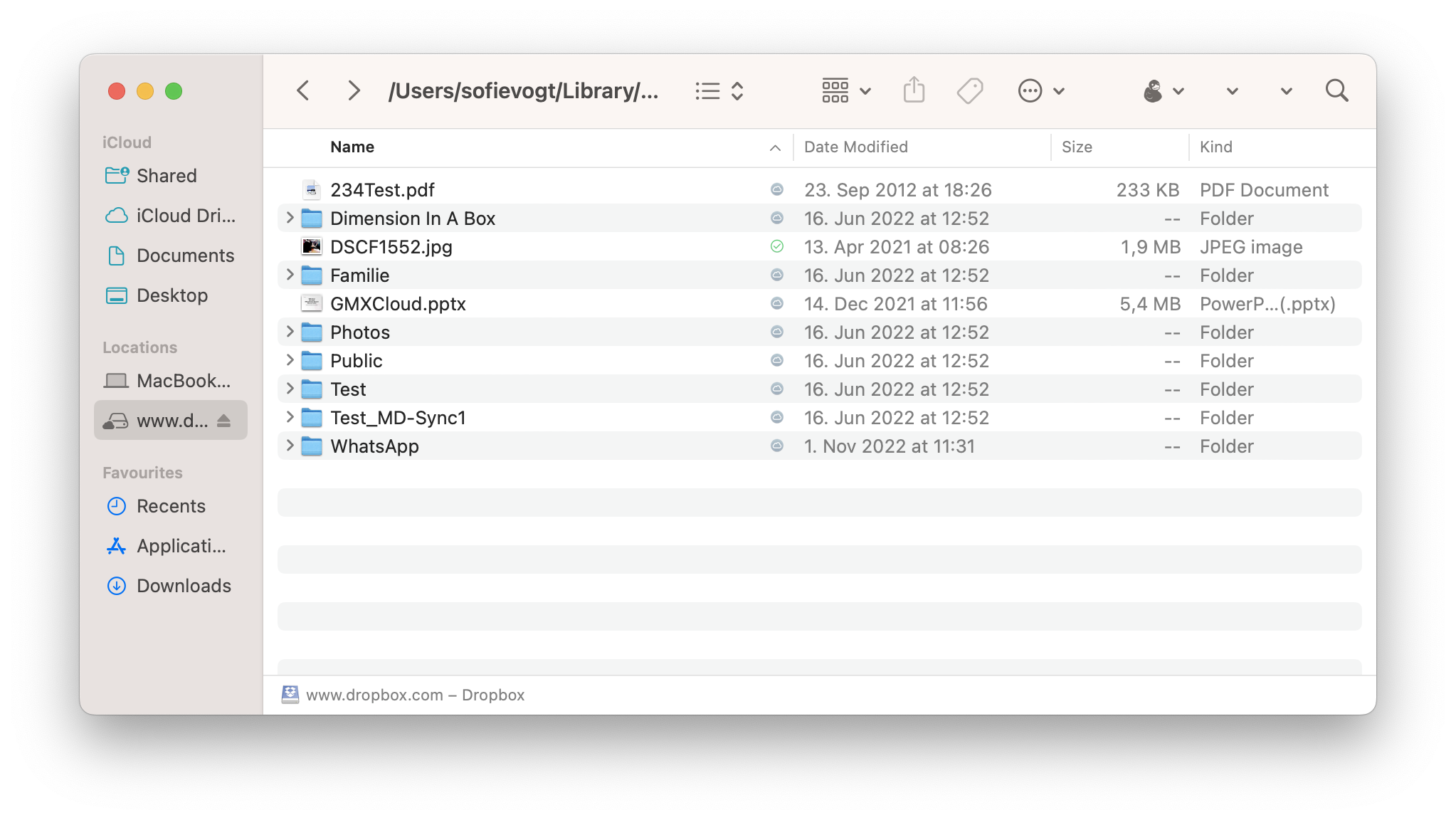
Once successfully connected, your files from Dropbox will open in Finder. To connect to a single folder instead of the root, add a path to your bookmark configuration. Without adding a Path to the bookmark configuration, you will be connected to the root of your Dropbox.
Connect to and work with multiple Dropbox accounts simultaneously. Repeat the above steps to connect to an additional Dropbox account you may have access. Open a new bookmark and login to the other Dropbox account in your web browser when authorizing access for Mountain Duck.
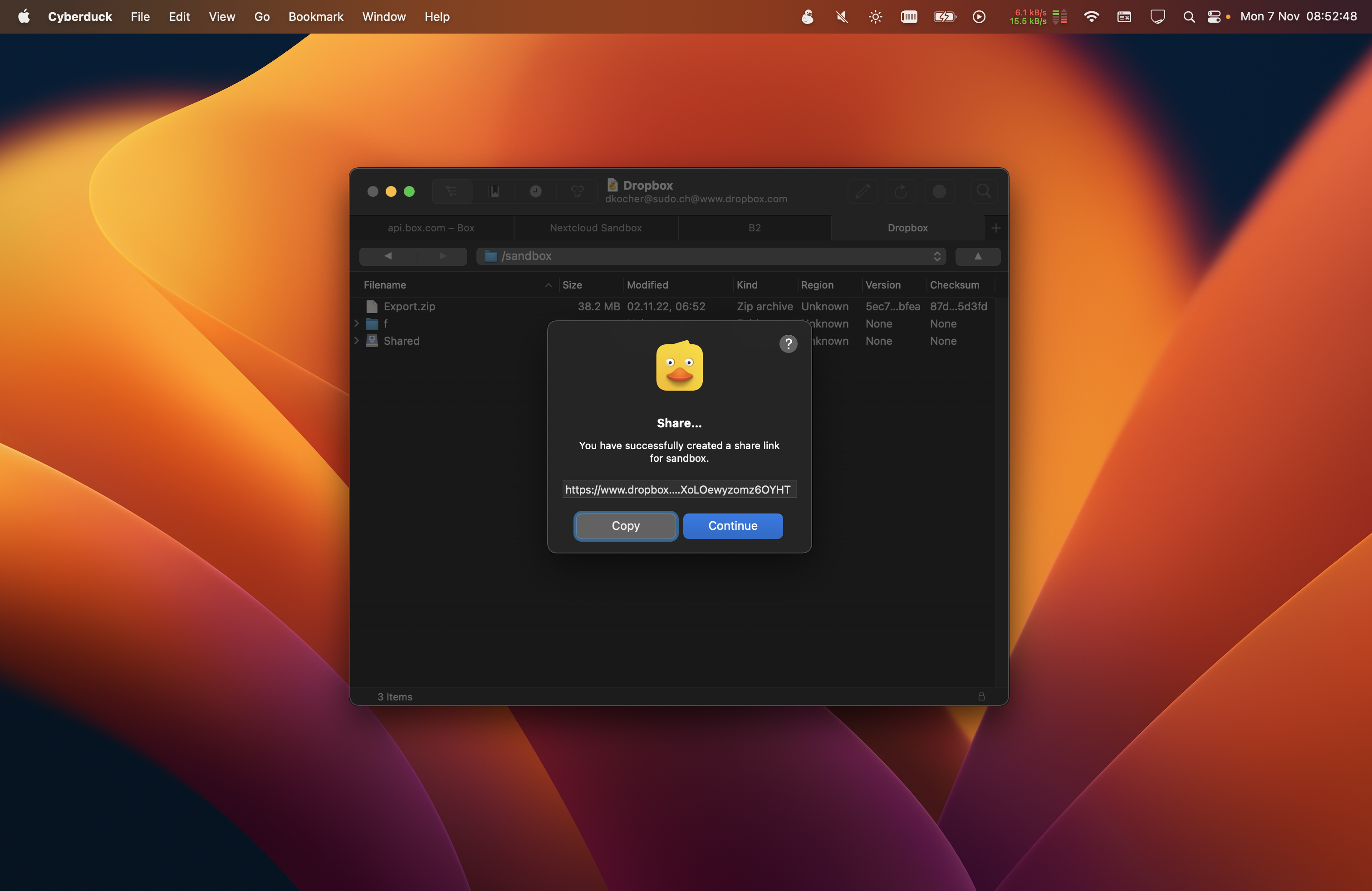
Alternatively, use Cyberduck to browse your Dropbox without syncing the files to your computer.
· David Kocher · Posted in Cyberduck, Mountain Duck
Boxcryptor has been acquired by Dropbox and will terminate free accounts as of January 31, 2023. Till then, all users have to look for an alternative. It is not clear how customers with existing contracts are served in the future and no new accounts are accepted. So why not use Mountain Duck with support for the Cryptomator vault format independent from a single provider?
Mountain Duck allows you to mount multiple cloud storages and servers as network drives on macOS and Windows using Smart Synchronization for offline access. Use the built-in, fully interoperable support for Cryptomator vaults to encrypt your sensitive data in password-protected vaults with end-to-end and zero-knowledge encryption. You do not need to have the Cryptomator apps installed but can access the same vault using Cryptomator for iOS for example.
Cryptomator is free and open-source software with no security by obscurity, no hidden backdoors from third parties, no need to trust anyone except yourself. No online services, no subscriptions, no accounts.
Follow these steps to migrate documents currently in Boxcryptor to a Cryptomator vault accessible through Mountain Duck:
Follow our documentation for step-by-step instructions to create a new vault or access an existing vault stored on your preferred cloud storage (including Dropbox).
· David Kocher · Posted in Cyberduck, Mountain Duck
Both Cyberduck and Mountain Duck are fully compatible with macOS Ventura.
· David Kocher · Posted in Mountain Duck
Mountain Duck 4.12 introduces new settings to allow cache management — a top requested feature.
In Smart Synchronization connect mode all files you work with (e.g. open, save, upload or explicitly choose to keep offline) are saved in the local cache to shorten access times and to make them editable when offline. Depending on the size of your files, this might eat up your local disk space. This can be problematic in particular for computers with a small SSD disk. The new cache management feature gives you the ability to define a retention time for files and to limit the size of the cache in general. Both settings can be enabled either separately or in combination.
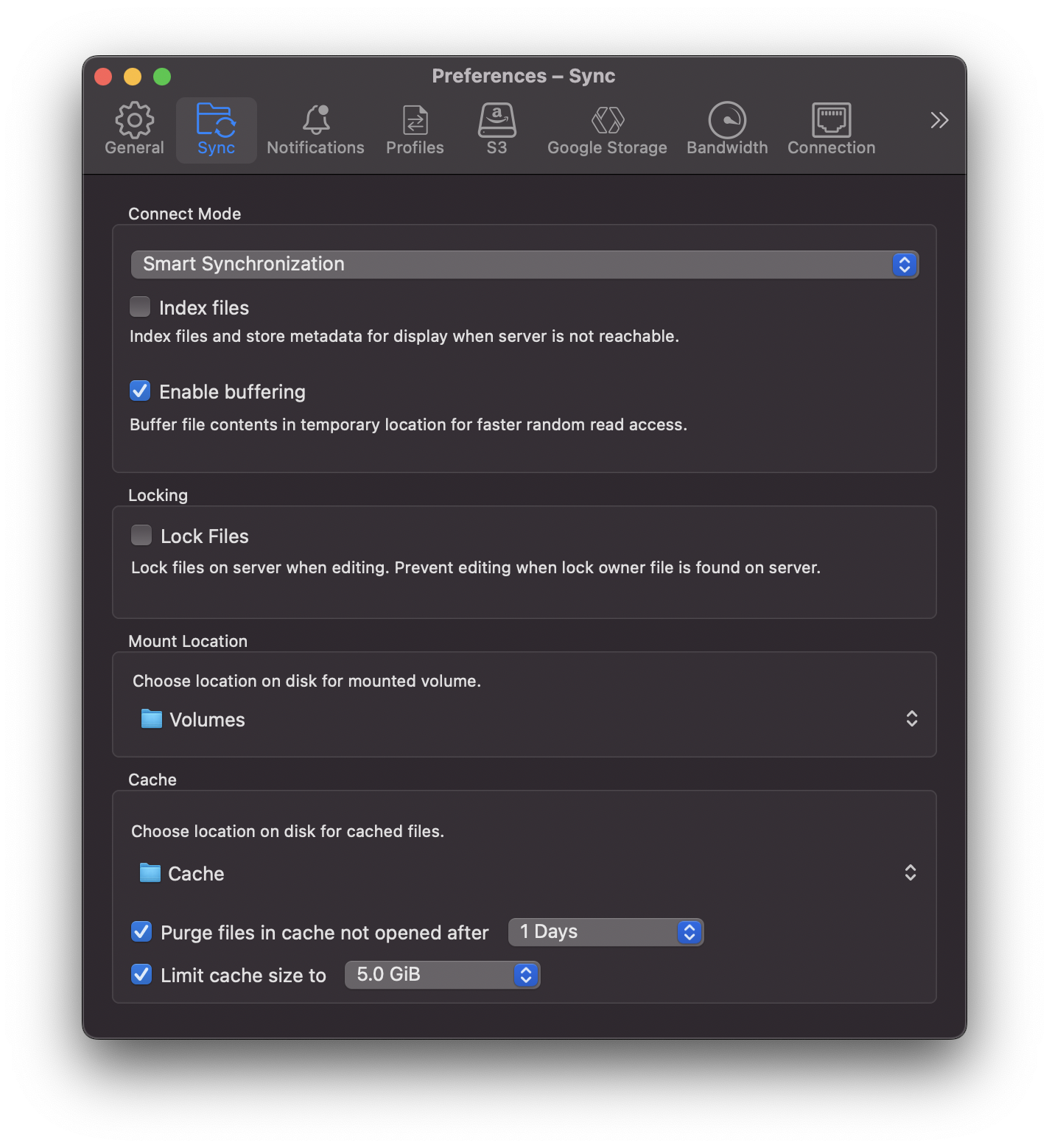
The first option defines the retention time in days after which a file is purged from the cache when it was not accessed during this period. The size option is a soft limit that does apply on a bookmark basis and excludes files marked to be kept offline by the user. In any case, older files are always purged first.
· David Kocher · Posted in Cyberduck, Mountain Duck
Cyberduck 8.4 and Mountain Duck 4.12 revamp support to view and retrieve previous versions. Instead of the context menu, previous versions are now listed into the Versions tab of the Info window.
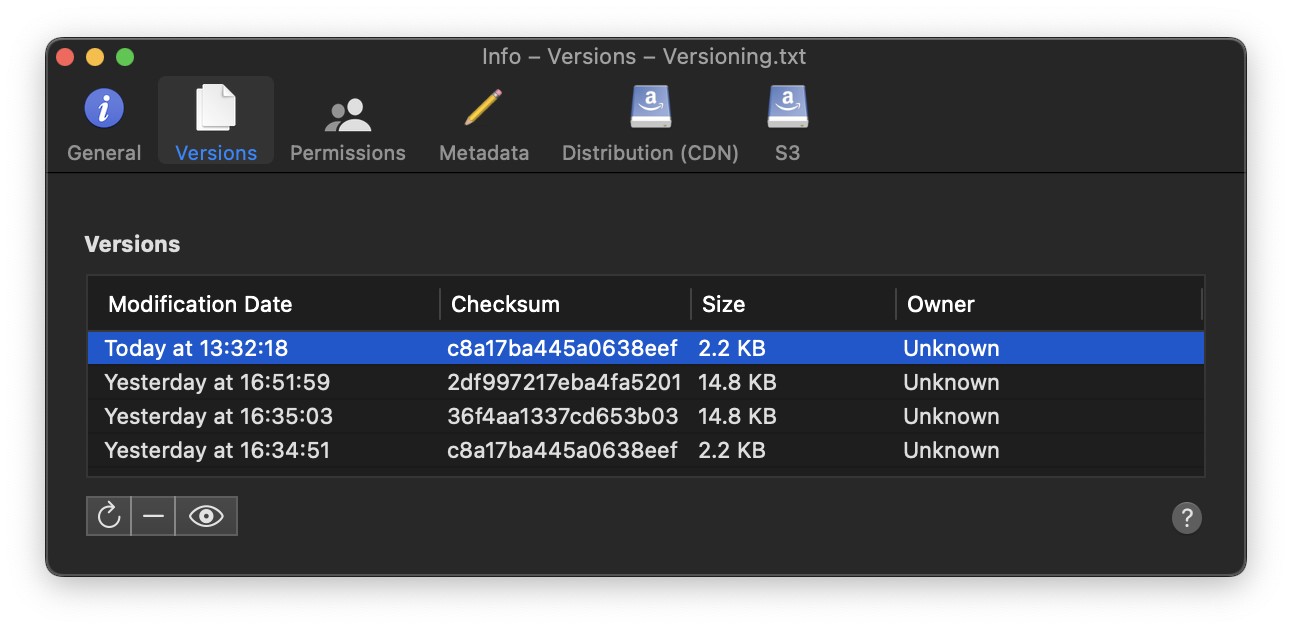
Using the buttons in the lower-left corner, you can perform different actions on the selected version:
The versioning feature is now available for Amazon S3, Backblaze B2, Dropbox, Google Drive, Google Cloud Storage, Microsoft OneDrive, and Microsoft Sharepoint connections. You can find full interoperability information in the documentation available.
 Cyberduck
 Mountain Duck
 CLI
CLI