· Laura Vogt · Posted in Cyberduck, Mountain Duck
The number of different possible options for cloud storage provided by services available from Microsoft Office 365 is confusing and merits some further ado. There are two services available from Microsoft – OneDrive and SharePoint – which are hidden in a diversity of different packages. SharePoint is a cloud storage service which is only integrated in business packages while OneDrive is existing for personal and business usages. Every person who has a Microsoft Account does have access to the personal version of OneDrive. You can detect if you have a personal or business profile by looking at the email address. If you have a business profile the email address contains onmicrosoft.com.
In the following chart an overview of the most common business profile packages and whether the packages contain OneDrive, SharePoint or both is shown.
[TABLE]
Cyberduck and Mountain Duck support OneDrive in personal and business edition as well as SharePoint through the default bundled connection profiles Microsoft OneDrive and Microsoft SharePoint. It doesn’t make any difference if you are using OneDrive personal or business there is only one profile that works for both. To connect to OneDrive or SharePoint with Cyberduck or Mountain Duck you have to create a corresponding bookmark which will connect to the services via Microsoft Graph.
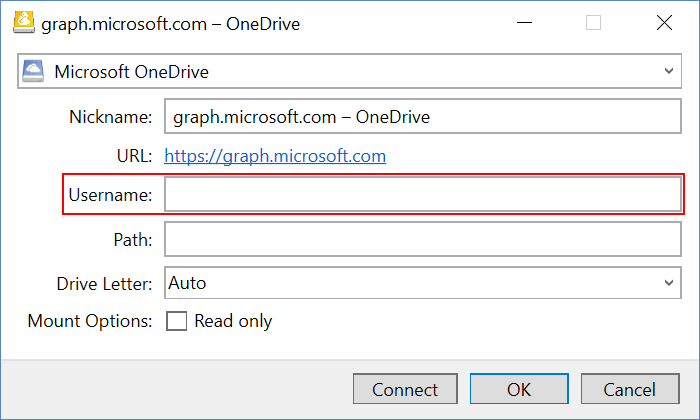
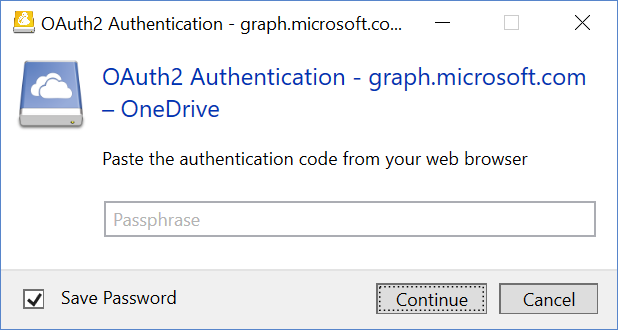
More information can be found in the Help Wiki for both OneDrive and Sharepoint.
· David Kocher · Posted in Mountain Duck
We are thrilled to release a public beta of upcoming Mountain Duck 3. The new version is a major milestone in our development timeline. Bridging the gap between online only access with no use of local disk space in Mountain Duck 2 and the new smart synchronization feature in Mountain Duck 3 with much improved performance accessing files is the main focus.
Think of it like Dropbox for any server and cloud storage but with the option to choose which files and folders are available for offline use while others do not take up disk space on your computer.
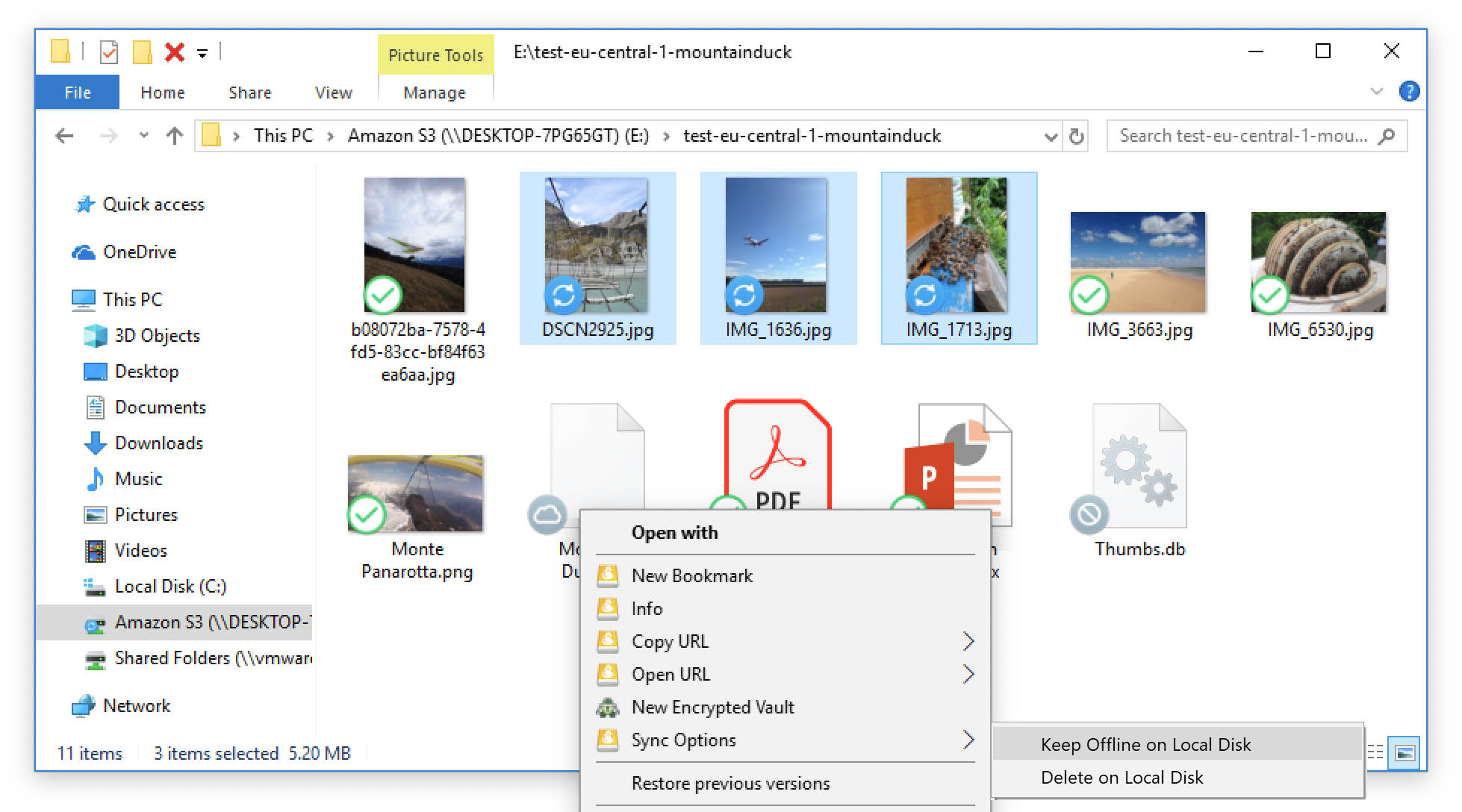
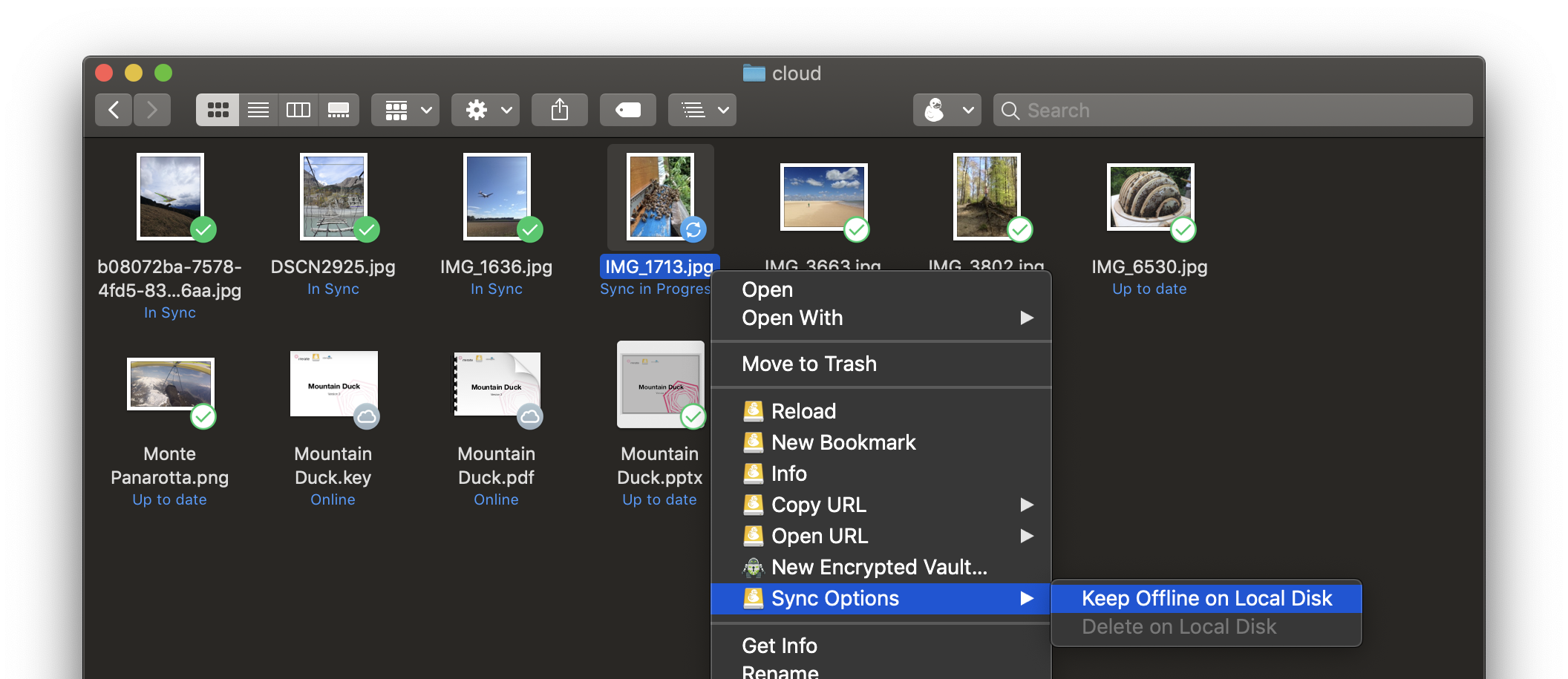
The smart synchronization feature allows to make files available offline. You can also choose to make explicitly all or only selected files and folders available for offline use. Changes to files are saved in a local cache first and uploaded in the background as soon as a connection is available.
Badge icons in the Finder and Windows Explorer indicate the status of files – which indicates if the file is only available when online or is synced to your computer for offline editing. Regardless of the status, you will always see all your files!


Synchronization with the remote storage is paused and resumed automatically depending on your network connection but can also be paused by the user manually. You will see a blinking duck icon in your system tray when a background transfer is currently in progress.
Updated documentation for the new smart synchronization feature can be found in our wiki.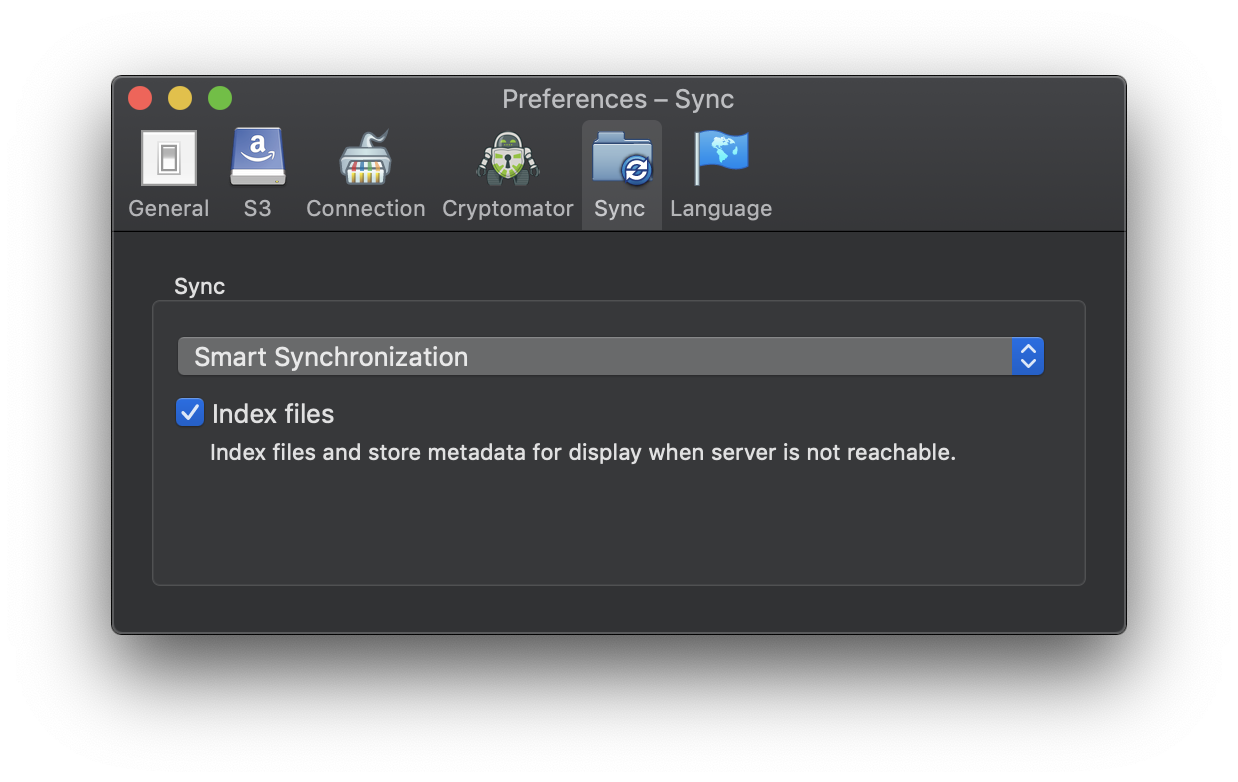
The full changelog reads
We are looking forward to any feedback you may have! Give it a try by choosing Beta in Preferences → Update → Check for Update….
Version 3 will be a paid upgrade to sustain our development efforts. Discounts for existing users between 40% to 100% depending on the date of purchase.
· Laura Vogt · Posted in Cyberduck, Mountain Duck
Mountain Duck and Cyberduck allow Cryptomator client-side encryption of your data which is missing in Dropbox and all other popular cloud storage solutions. You will find a description of how to use Cryptomator Vaults in Dropbox and access your documents from your computer and mobile in the following sections.
Encrypt your data with Mountain Duck and Cyberduck
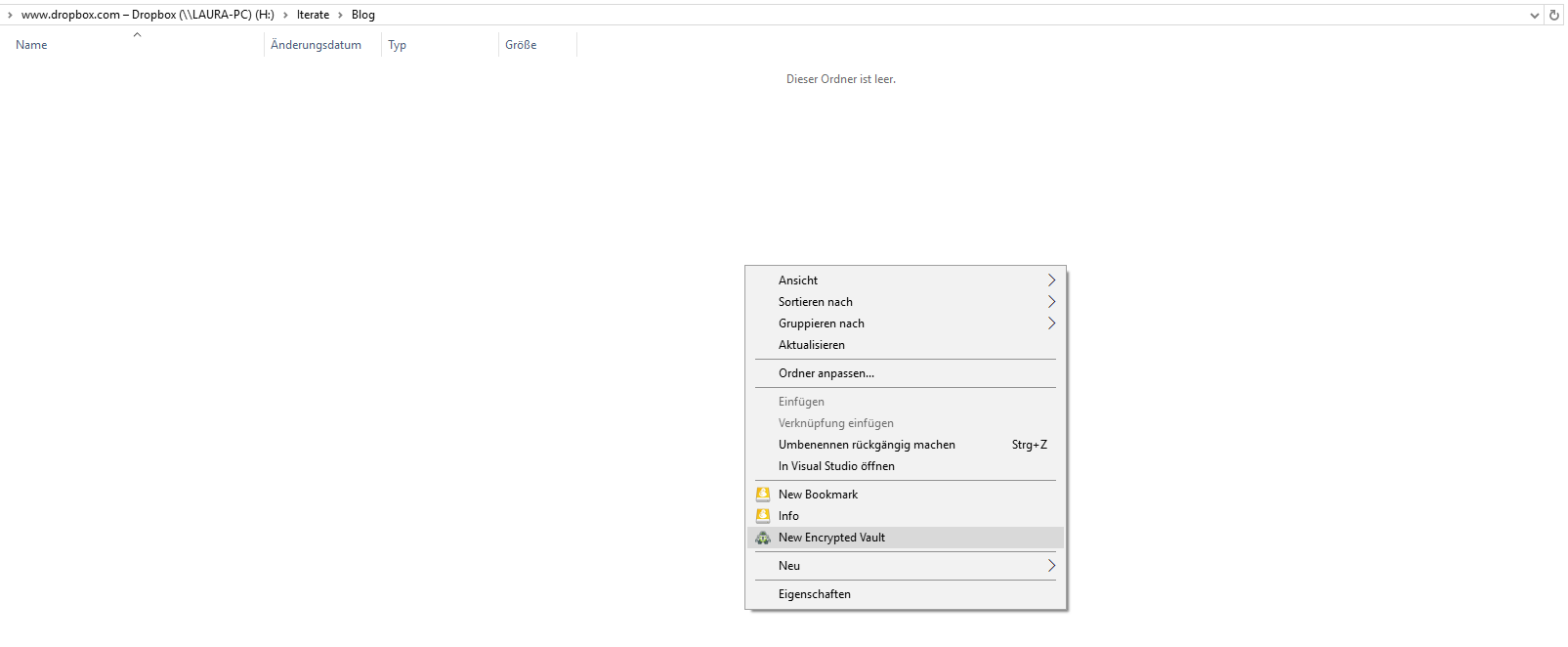
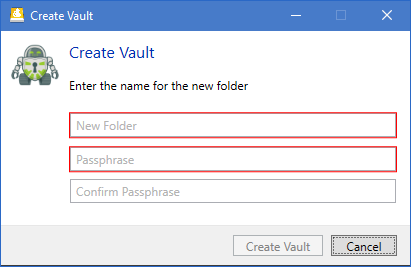
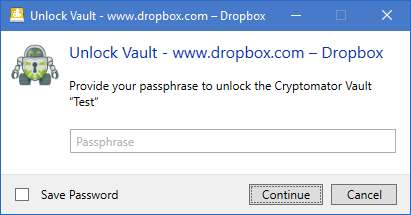
Access your encrypted data with the Cryptomator app on your mobile.
This process does not only work with Dropbox but with any other connection supported in Cyberduck and Mountain Duck. You can find more information on Cryptomator support in our wiki.
· David Kocher · Posted in Cyberduck, Mountain Duck
Instead of providing Access Key ID and Secret Access Key, authenticate using temporary credentials from AWS Security Token Service (STS) with optional Multi-Factor Authentication (MFA), making Cyberduck and Mountain Duck more friendly to enterprise deployments. You will need to install the custom connection profile S3 (Credentials from AWS Security Token Service) available from our website.
Our implementation to obtain temporary credentials is interoperable with standard AWS CLI configuration in ~/.aws/credentials. Refer to our wiki for documentation.
· David Kocher · Posted in Cyberduck, Mountain Duck
You can now connect to OneDrive in Office 365 Germany in Cyberduck 6.3.0 and Mountain Duck 2.6.0 by installing the Microsoft Office 365 Deutschland OneDrive connection profile from our website.
 Cyberduck
 Mountain Duck
 CLI
CLI