· Laura Vogt · Posted in Mountain Duck
Mountain Duck 4 adds a file history feature which allows you to see which files were recently edited by you or someone else on the server and which files are currently transferred or pending synchronization.
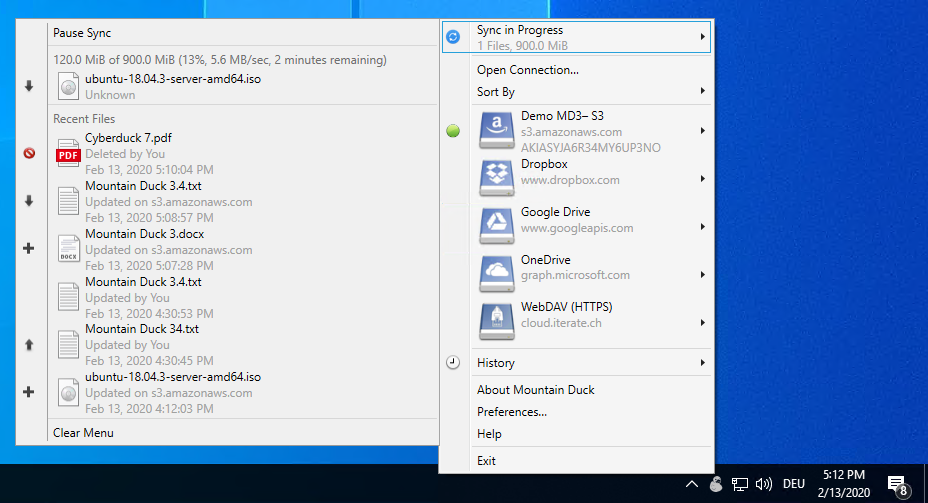
The sync progress area of the file history section shows the files that currently get synchronized and the files that will get synchronized after the current synchronization process. There are different synchronization states that can get displayed within that area: idle, active synchronization process, and prepare for synchronization.
Shown for active synchronization processes are transfer rate, remaining data, and already transferred data. If Mountain Duck synchronizes files in a badge, the file state might differ to the state within the file browser. The sync progress display limit is five entries.
Clicking on a file in the sync progress Mountain Duck reveals it in Finder or File Explorer on Windows.
The second key section of the file history feature is the Recent Files area in which you can see the last 20 items that Mountain Duck uses for one of the following processes: delete, create, upload, and download. Also, a file may show up with an error state indicating an issue while synchronizing. Further details are available through the Finder or Explorer extension sync options menu item.
Clicking on a file in the Recent Files section Mountain Duck reveals it in Finder or File Explorer on Windows. You can clear out all entries of the list by clicking on the Clear Menu button at the end of the file history menu.
· David Kocher · Posted in Mountain Duck
Take a couple of minutes to write a short review of your experience with Mountain Duck on Capterra, a site used by business software buyers
to find suitable solutions. Capterra is offering $20 to the first 100 users who write a qualifying review.
Looking forward to your review!
· Laura Vogt · Posted in Mountain Duck
Update. Cyberduck 7.0.1 and Mountain Duck 3.0.3 now include a connection profile for Nextcloud & ownCloud by default allowing a more straightforward setup. You can now also select files to create a public share link.
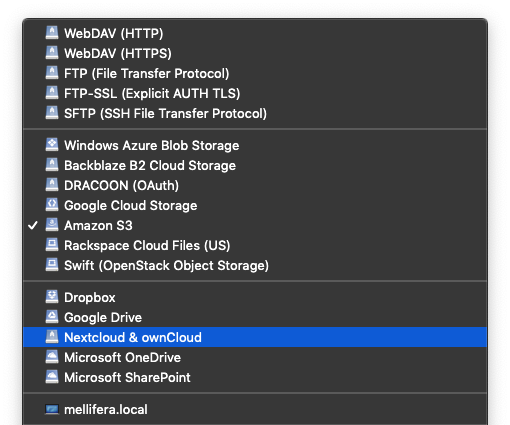
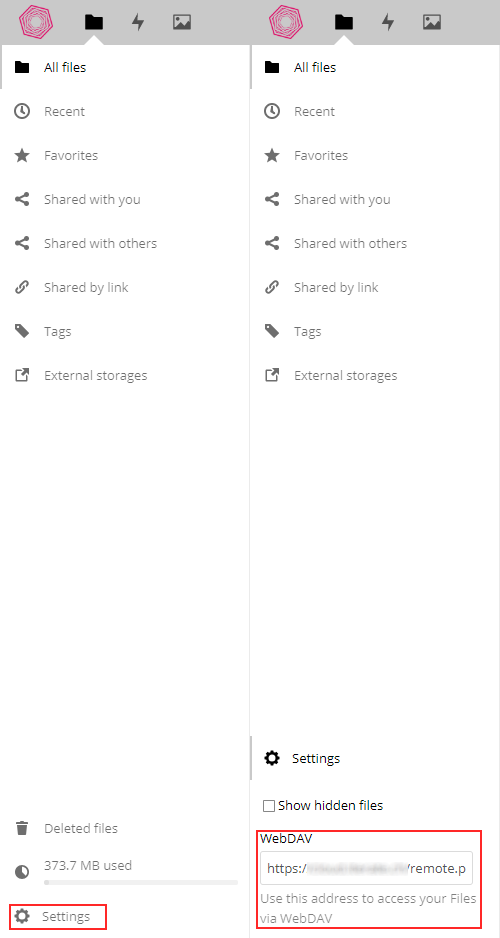
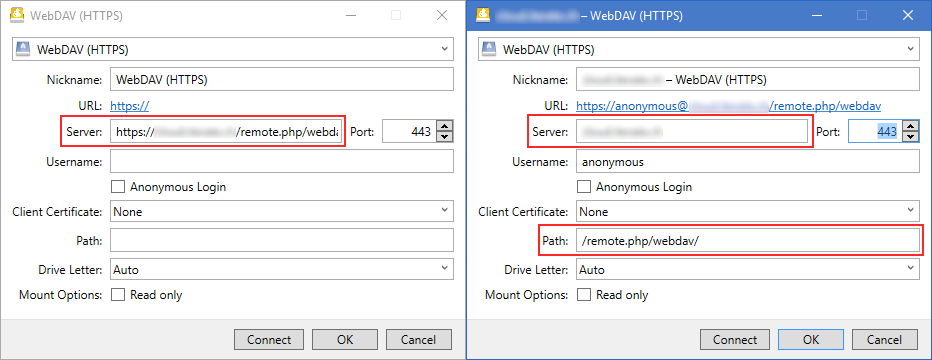
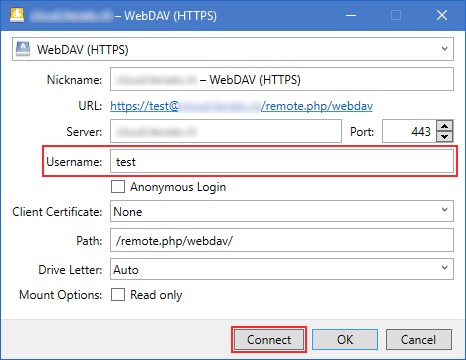
You are looking for a way to connect to your NextCloud or OwnCloud server without loosing any hard disk space on your computer? Mountain Duck mounts your server storage as a network drive in which you can transfer and edit files. The following describes the connection process to NextCloud with a Mountain Duck Bookmark step-by-step.
See also Mountain Duck 3 as an alternative to the Dropbox client application.
· Laura Vogt · Posted in Mountain Duck
Mountain Duck 3, combined with any cloud storage, is a viable, more secure solution to synchronize access to documents on multiple computers and users. With Mountain Duck 3 you have the ability to make files and folders accessible for offline usage selectively. This has the advantage that not all data is kept on your local drive for offline usage compared to clients like Dropbox and Google Drive. Additionally, you can apply this principle to all of your bookmarks and not only on the already mentioned cloud storage provider.
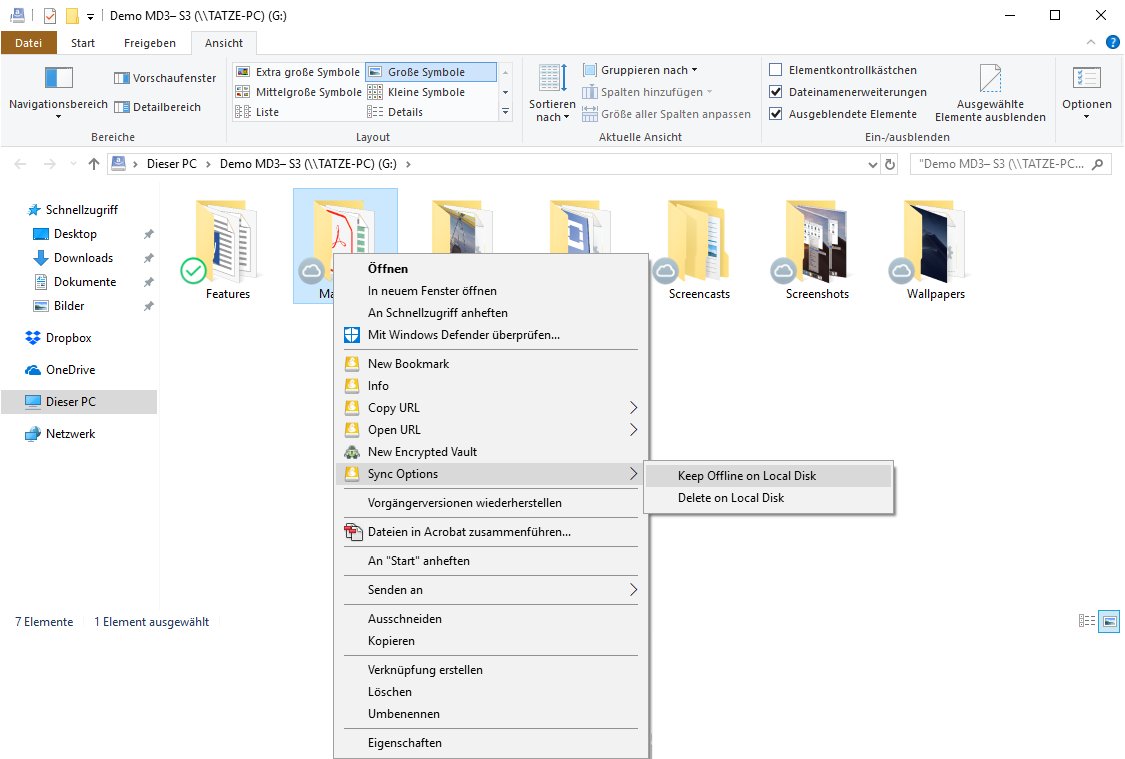

Now you can access the file when you aren’t connected to the Internet. All file changes will be synchronised as soon as connectivity to the remote storage is restored.
You can mount multiple accounts at the same time if you have different Dropbox accounts. Create a new bookmark for every account and run through the OAuth flow. Make sure to log out of the Dropbox website prior setting up a new bookmark.
See also Access NextCloud from your desktop.
· Laura Vogt · Posted in Cyberduck, Mountain Duck
You want to grant one or several people temporary access to large files? Email is not an option and providers offering a web interface are costly, limit the file size or tend to be unreliable. Cyberduck or Mountain Duck in combination with cloud storage providers allows you to share files without relying on a third-party website.
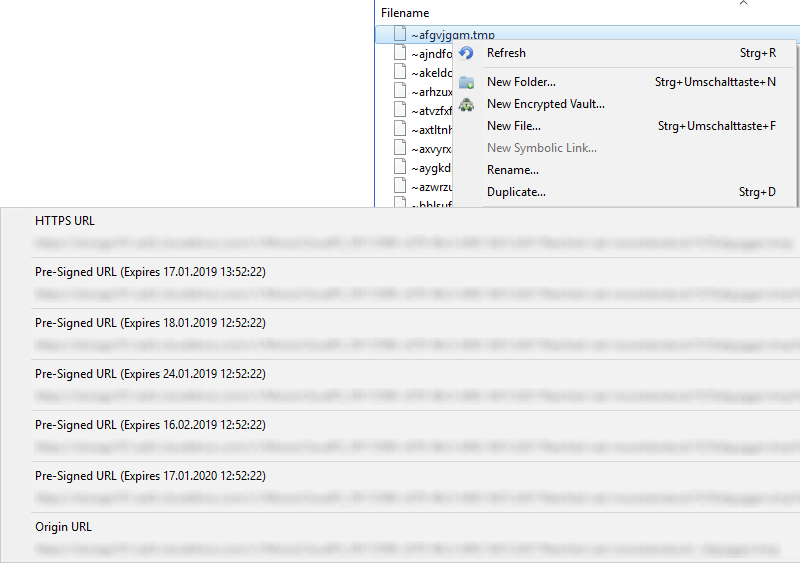
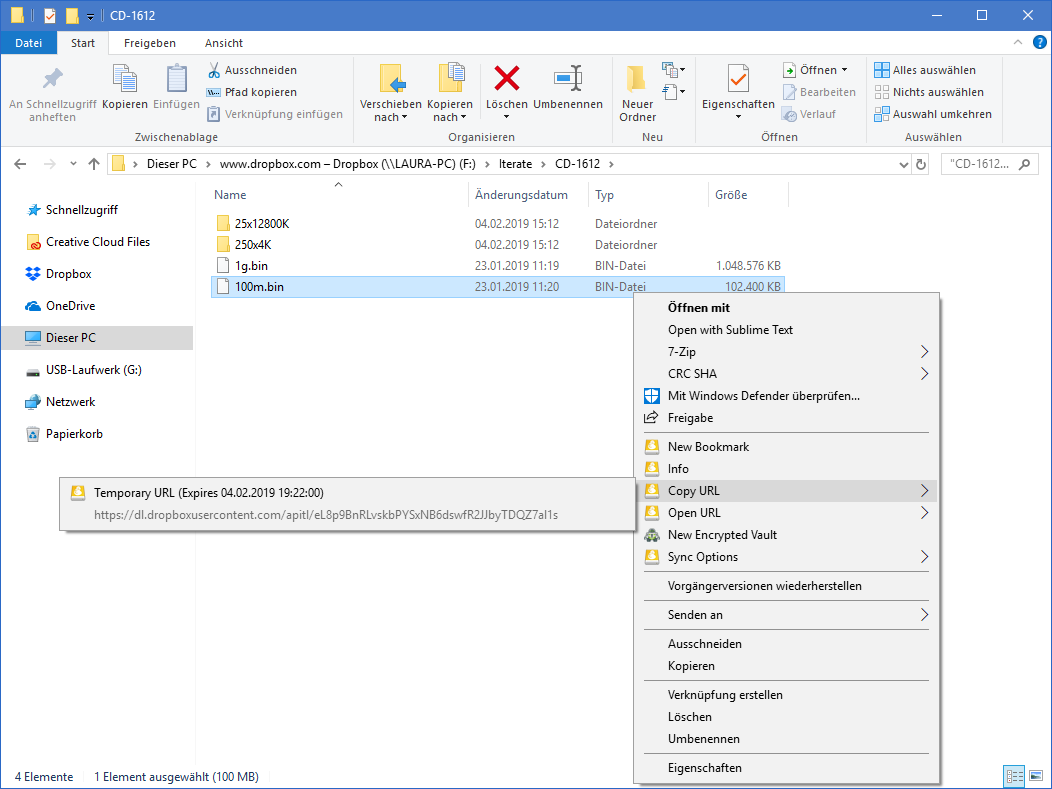
With Cyberduck or Mountain Duck and those cloud storage providers, you can share links with third parties that expire after an hour, days or months. Between the protocols, the expiration time of the shared links may vary. Contrary to other solutions there is no restrictions on bandwidth or the number of downloads.
In the following section, you will find a short guide on how to share large files with Amazon S3, Microsoft Azure, Dropbox or OpenStack Swift cloud storage providers.
Update See also our documentation on sharing options for different storage service providers.
 Cyberduck
 Mountain Duck
 CLI
CLI