· David Kocher · Posted in Cyberduck
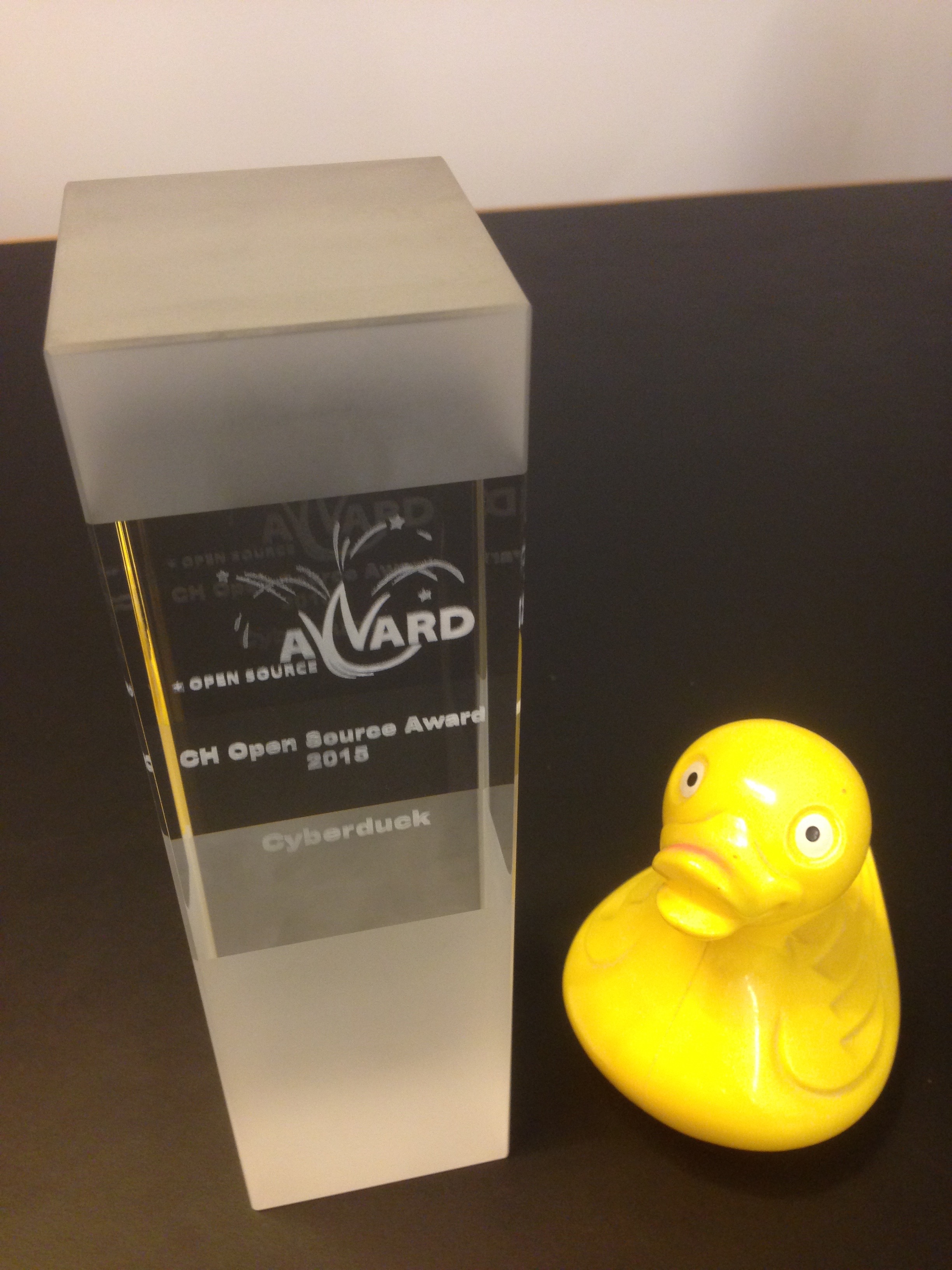
Delighted to have received the CH Open Source Award 2015.
· David Kocher · Posted in Cyberduck
There have been requests since a long time that we should provide a way to mount remote server storage as a volume in the Finder.app and File Explorer on Windows, respectively.
We are excited to announce a private beta for Mountain Duck – “Cyberduck for mounting volumes in the file explorer”. It comes with a minimal user interface as a status bar application supporting all protocols available in Cyberduck. Mountain Duck mounts the remote storage as a volume to allow any application to access the files for reading and writing.
In contrary to other solutions available for the Mac, Mountain Duck requires no installation of kernel extensions or system libraries and runs sandboxed on OS X 10.8 or later.
Please request an invite to the private beta and let us know how it works for you. Mountain Duck will be available later this year in the Mac App Store and as a Windows Installer.
· David Kocher · Posted in Cyberduck
We have introduced support for the iRODS protocol (refer to our documentation) in collaboration with iPlant at the BIO5 Institute. Below two excerpts from the iPlant Collaborative Press Release.
(…)
iRODS is widely used by thousands globally to manage their data in a variety of disciplines, including hydrology, astronomy, engineering, and life sciences. Thus, the new Cyberduck plug-in effort led by iPlant will have a global impact to improve convenience of data transfer for scientists working with large-scale data.
(…)
Using Cyberduck, Barthelson was able to download a 2.8 Gigabyte file in 3 minutes, transferring the content at a rate of approximately 1 Gigabyte per minute into iPlant’s Data Store, which provides a reliable and redundant repository for storage, analysis and sharing of scientific data.
· David Kocher · Posted in Cyberduck
Cyberduck supports transfers between servers regardless of the protocol by simply opening two browser windows connected to different hosts and drag file and folders between.
With Cyberduck CLI, there is now also the option to automate such tasks with a script running on Mac, Windows or Linux to keep a current copy of files on a different host for failsafe access. Use the --copy option to do the same but allowing you to automate the task. Consider you want to copy files from Amazon S3 to Rackspace CloudFiles running OpenStack Swift, all you need is the command
duck --copy s3://<Access Key ID>@<bucket>/ rackspace://<Username>@<container>/
to copy all files. Use the --existing compare option for subsequent invocations to only transfer new and changed files.
· David Kocher · Posted in Cyberduck
Server side encryption for file uploads to S3 is not new and supported since version 4.2. Still we want to give short summary how to ensure all files uploaded to a bucket are protected.
Create a new bucket in S3 choosing File → New Folder… in Cyberduck. Refer to Create a bucket.
Enforce encryption by applying a bucket policy using the AWS S3 console. Choose Edit Bucket Policy and enter the policy
{
 "Version": "2012-10-17",
 "Id": "PutObjPolicy",
 "Statement": [
 {
   "Sid": "DenyUnEncryptedObjectUploads",
   "Effect": "Deny",
   "Principal": "*",
   "Action": "s3:PutObject",
   "Resource": "arn:aws:s3:::bucketname/*",
   "Condition": {
     "StringNotEquals": {
       "s3:x-amz-server-side-encryption": "AES256"
     }
   }
  }
]
}
In Preferences… → S3 → Encryption choose AES256 as the default.
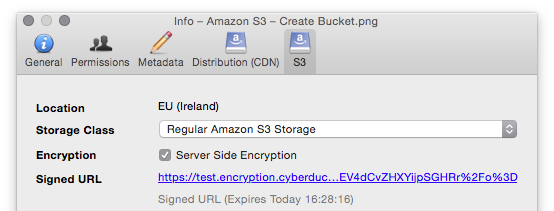
You can verify an object is encrypted in S3, by choosing ⌘-I for a object and choose the S3 tab. Ensure the Server Side Encryption checkbox is selected.
References
 Cyberduck
 Mountain Duck
 CLI